In this article, I’ll guide you through using the add video option in the Render section of the Upload tool for Upload Youtube and Upload Facebook. Let’s get started!
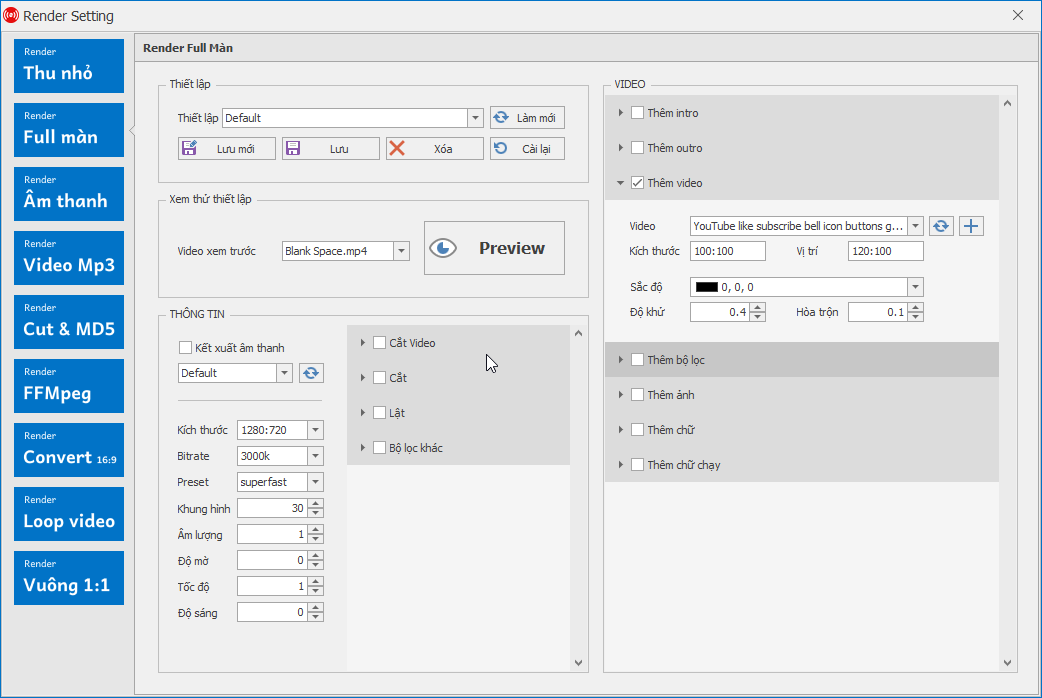
Step 1: Go to Render settings and select minimized Render, full-screen Render, or square Render if you are doing a Facebook Upload to use this option.

Step 2: After adding the video, adjust the parameters, size, position, color tone, denoise level, blending, and more as shown in the guide image.

Once you finish adjusting, you can click Preview to view the result and fine-tune the parameters before rendering the video.

Wishing you success!!!
If you have any questions, please contact us through our website and fanpage.
https://dhbtools.com/
http://m.me/dhbtools
https://www.facebook.com/dhbtools