
How to Use the Resource Feature in DHB Render
Resource is a feature that lets you randomly pull sources for videos, images, and audio for elements in a template
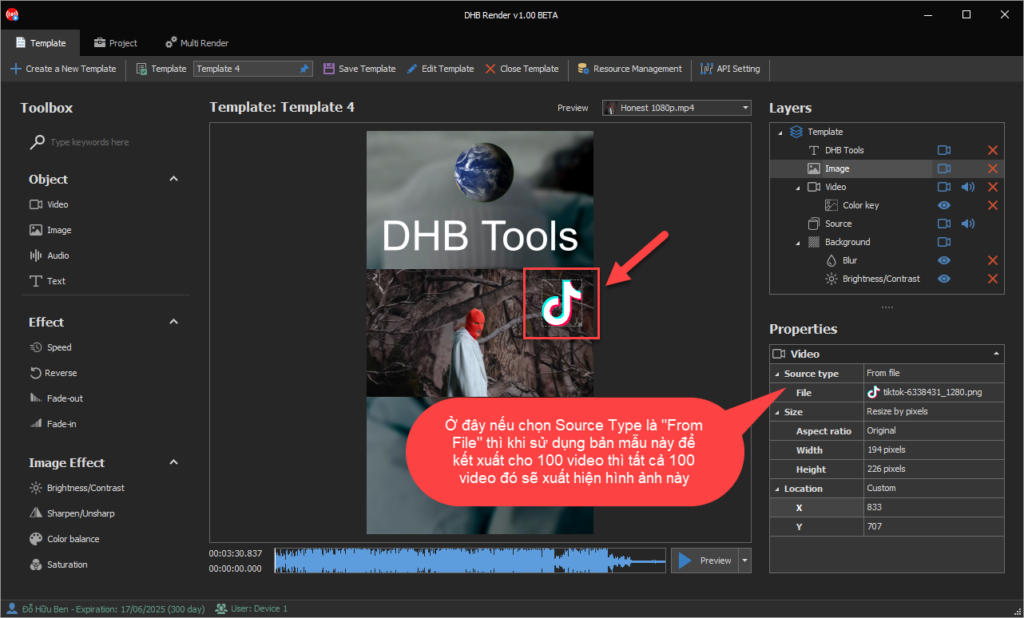
When adding video, image, or audio elements from File, if you use this Template to render 100 videos, all 100 videos will show the same image. So what should you do if you want to choose randomly? I’ll guide you through using the Resource feature to randomly pull assets
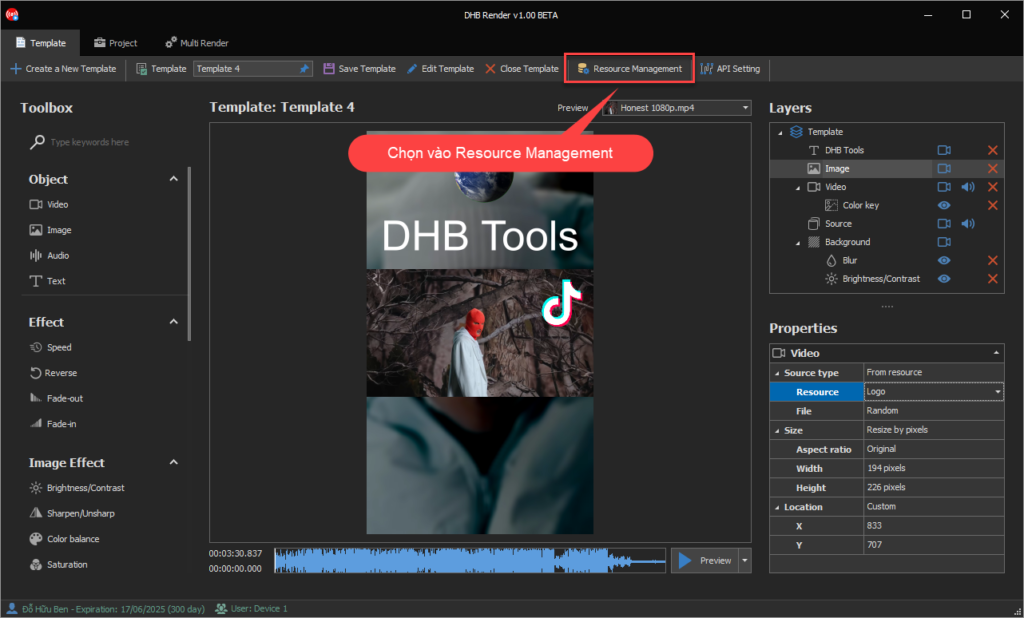
Create a new Resource
Select Add Resource. Choose the Resource type, then enter a name.
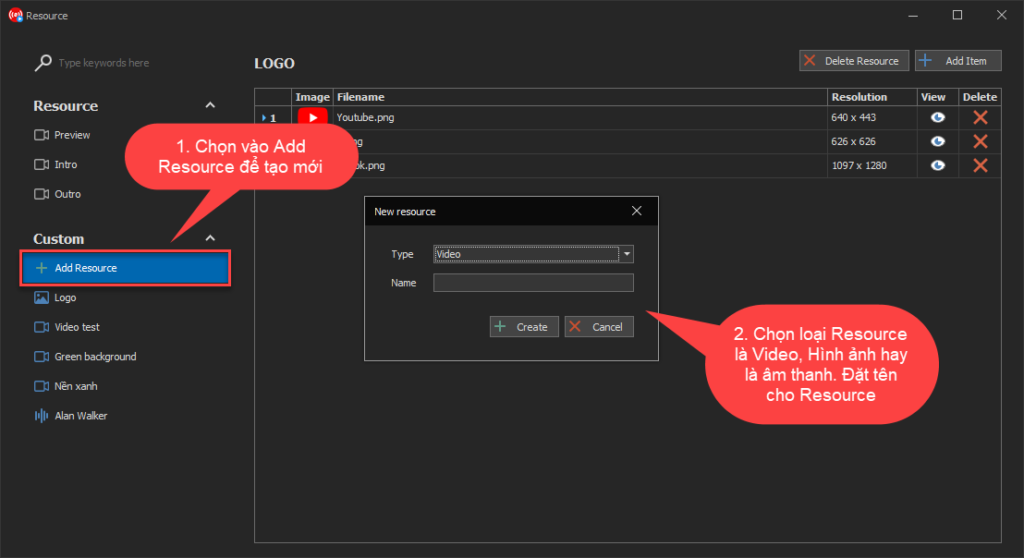
I’ll use the 'Image' type as an example. Name it 'Logo'.
Add images, videos, and audio to the Resource
Add images to the table. For video and audio, you can do the same. You can select the Add Item button or drag and drop files in
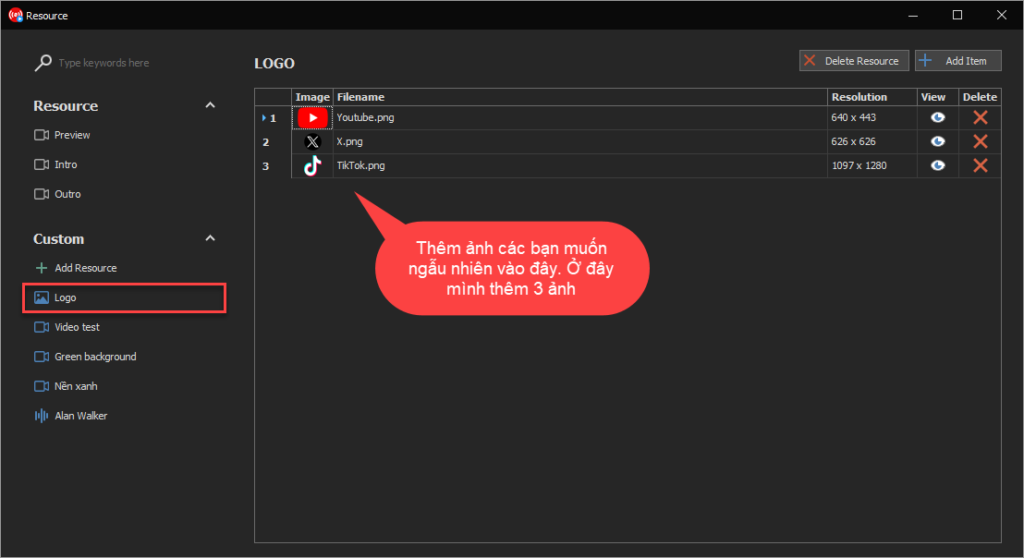
After adding them, close Resource Management
Use the Resource in a Layer and render videos
Select the Layer where you want to use the Resource. Here I choose an image because I just created the Resource Type as an image (Image)
Select Resource and File as I explain in the image. My image has now been randomized
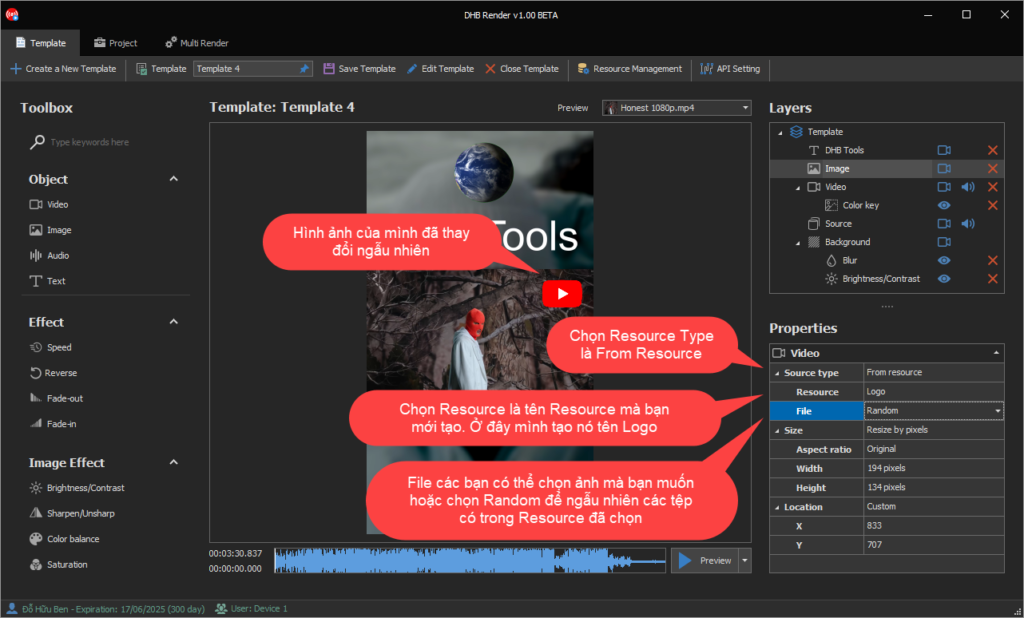
Save the Template, then use this template to render videos. My image Layer will randomly pull images from the Resource to render the video.
Wishing you success !
If you need support or have any questions, contact me through the Fanpage https://facebook.com/dhbtools nhé.
Bình luận
Chưa có bình luận nào. Hãy là người đầu tiên!
Hướng dẫn tạo phụ đề, thuyết minh tự động cho Video bằng DHB Render
Trong bài viết này mình sẽ hướng dẫn bạn từng bước để thiết lập các tính năng, cài đặt API hoặc model AI, và sử dụng các bộ lọc có sẵn trong DHB Render để tạo, chỉnh sửa và tùy chỉnh phụ đề, dịch phụ
Read more →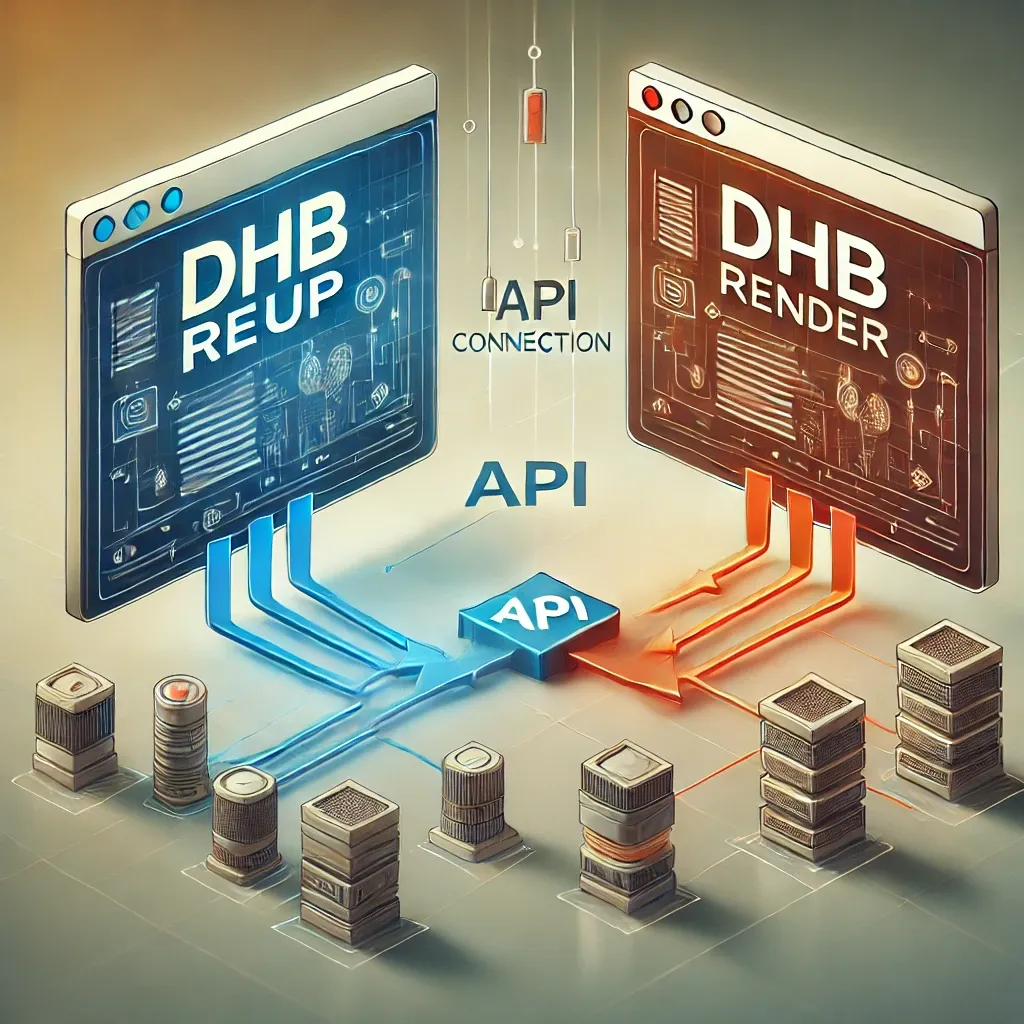
Hướng dẫn kết nối DHB Upload với DHB Render
Kết nối API giữa phần mềm DHB Upload với DHB Render giúp người dùng DHB Upload có thể dễ dàng sử dụng các bản mẫu (Template) kết xuất video của DHB Render ngay trong các phần mềm DHB Upload. 1. Lấy Toke
Read more →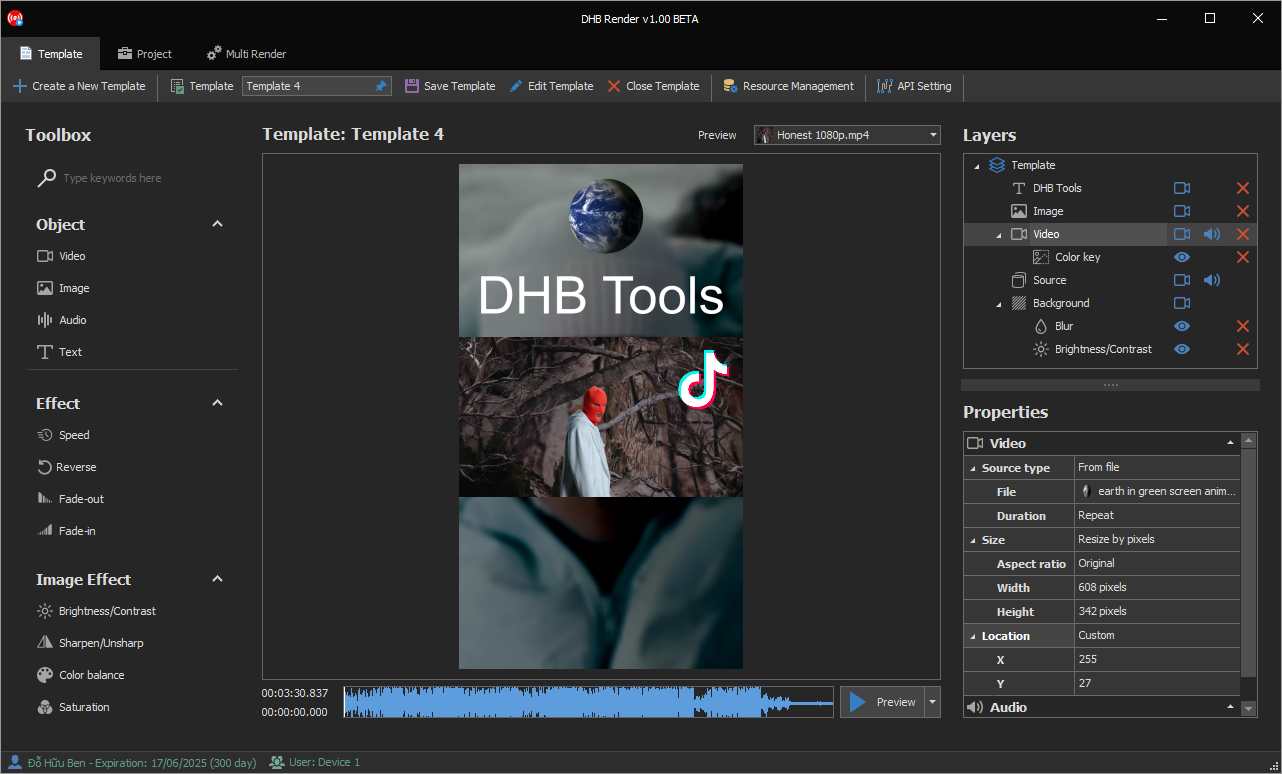
Hướng dẫn sử dụng phần mềm DHB Render
DHB Render là giải pháp mạnh mẽ giúp bạn tạo ra các bản mẫu video (template) và kết xuất hàng loạt video một cách nhanh chóng. Với giao diện trực quan và các tính năng đa dạng, DHB Render hỗ trợ bạn
Read more →
Hướng dẫn sử dụng Render ClaimID phần mềm Upload Youtube
Để sử dụng được chức năng này tài khoản của các bạn phải là tài khoản Pro.Sau đây là các bước cài đặt Render và chạy. Sau khi giao diện kết xuất được mở. Chọn Render ClaimID. Bạn có thể thê
Read more →