
How to Use DHB Upload Facebook
Configure the general settings
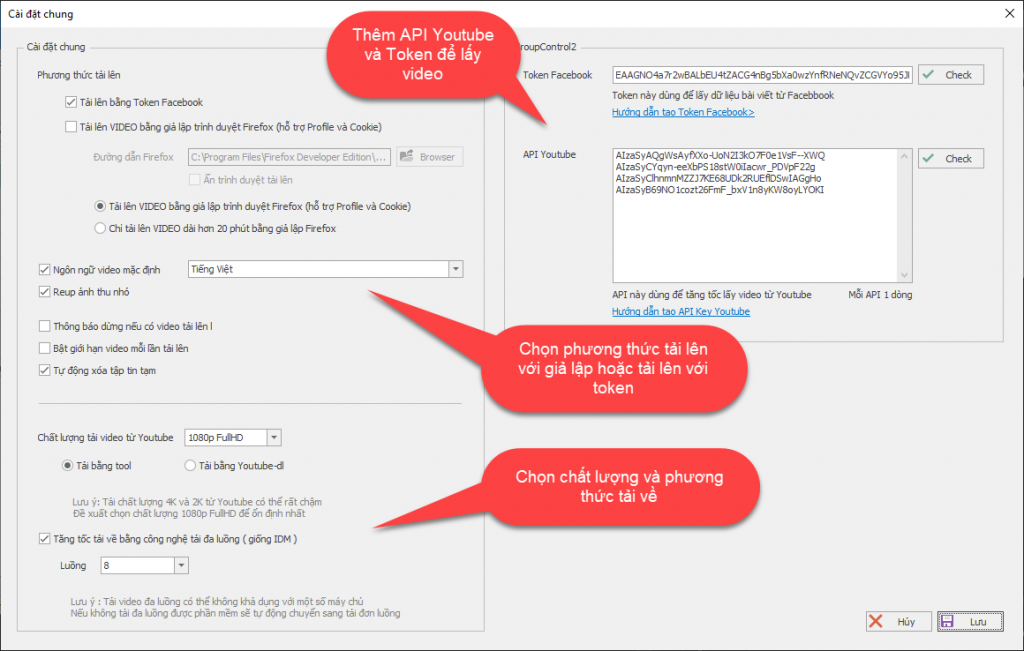
Before you can use the software and fetch videos for upload, you need to configure the general settings first. If you do not add videos from Facebook and Youtube, you can skip entering the Token and API
Guide to getting the token Token and API
Add Facebook accounts
After completing the setup, we can proceed to add accounts for uploading
If you upload using a profile, you can view the guide to setting up a profile and connecting it to the tool here.
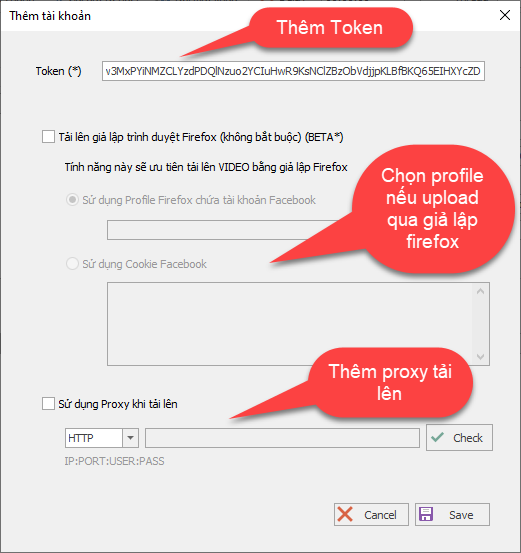
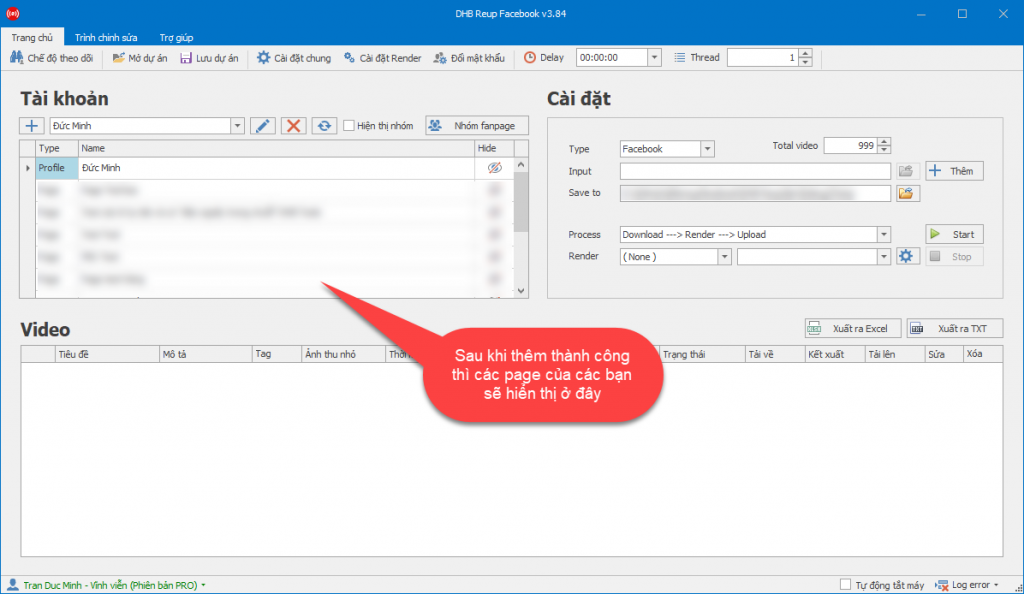
If the account is added successfully, the tool will display your personal Profile, all Pages, and Groups in the Account table as shown below
Add videos to the tool
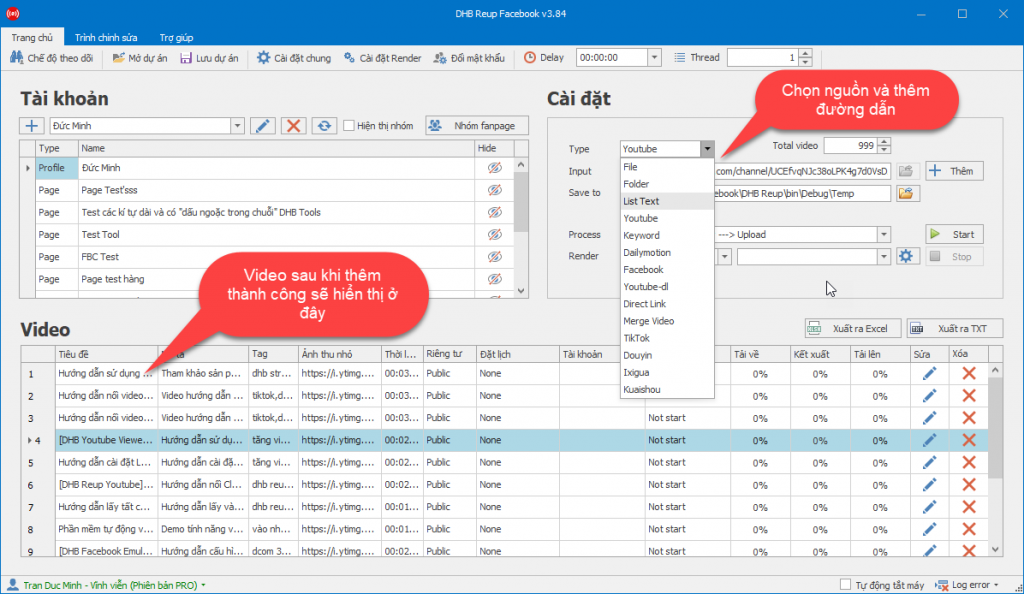
After adding the account successfully, you can start using the tool to upload videos to Facebook. To add a video to the tool, enter the video link you want to upload to Facebook into the input box. The tool supports adding videos from the following sources:
- File ( Add videos from File )
- Folder ( Add videos in bulk from Folder )
- List Text ( Add videos from a .txt text file )
- Youtube ( Add videos from a youtube link, playlist link, or channel link )
- Youtube-dl ( Add videos from all links listed at here )
- Keyword ( Add videos from a keyword )
- Facebook ( Add videos from a facebook video link or facebook fanpage link )
- Direct Link ( Add videos from direct links, including download links from movie websites )
- Douyin ( Video link, channel link ) * Version Pro
- Tiktok ( Video link, channel link ) * Version Pro
- Kuaishou ( Video link, channel link * Version Pro
Select the type you want to add, then paste the link into the input box and click Add. The added video will appear in the video table
Edit video titles and descriptions
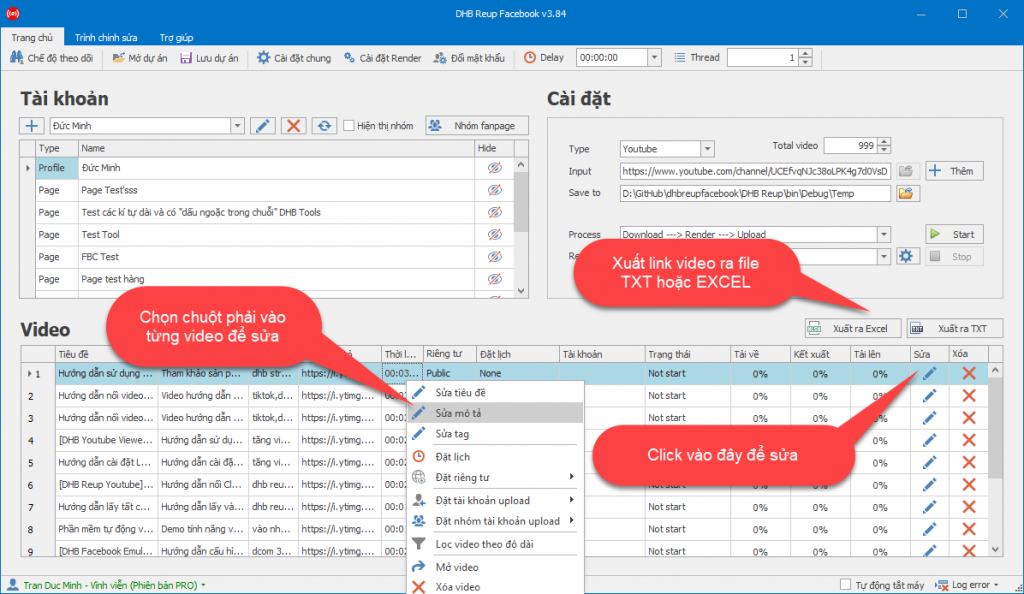
You can edit the title and description by right-clicking the video you want to edit and selecting the editing options, or click the Edit icon on that video to edit more details
Select the upload account and render method
After editing the video, you need to select an account to upload it by clicking the Account cell of the video you want to upload in the video table and choosing the upload account. Here, the tool will list all profiles, pages, and groups shown in the Account table
If you want to add multiple videos to the Tool, simply press CTL + A, then right-click the video table, choose Set Account Upload, and select the account to upload to. The tool will automatically assign that account to all videos in the tool.
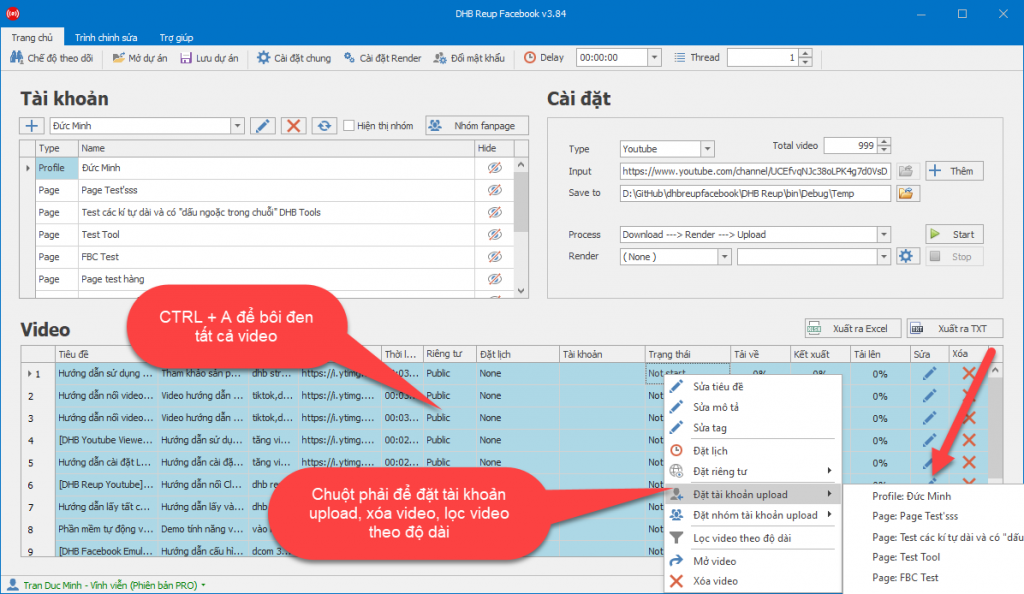
After selecting the account, remember to choose the video render method and select the render config. I will leave the article link at the end of the guide description.
Tool settings
One final note is about a few tool settings.
Tải video Full HD: check this if you want to download Full HD videos from Facebook links.
- Auto delete: when checked, the tool will automatically delete temporary files after finishing each video to prevent memory overload when used on a VPS.
- Auto shutdown: when checked, the tool will automatically shut down the computer after all videos in the video table have finished running.
- Log error: where the cause of an error is reported when the tool encounters an error
- Config Render: please read the guide Here
Delay means waiting time. For example, if you set the delay to 01:00:00, after the tool finishes the first video, it will wait 1 hour before running the second video.
Thread means the number of concurrent threads. If you set thread to 2, the tool will download > render > upload 2 videos at the same time. I recommend setting thread to 1. If you are not uploading and only rendering, you can set it higher
Process is the running workflow. If you only download, choose Download as the process. If you Download and then Render without uploading, choose Download > Render. If you choose Download > Render > Upload, the tool will complete the entire workflow
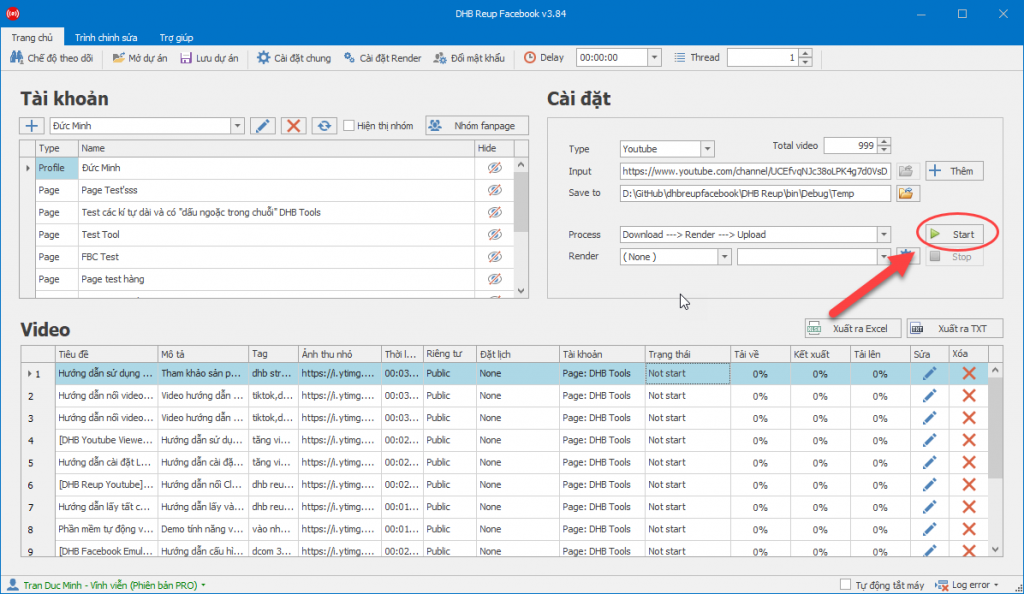
After completing the setup, click Start to run.
Wish you success !!!
If you have any questions, please contact us via our website and fanpage
https://dhbtools.com/
http://m.me/dhbtools
https://www.facebook.com/dhbtools
Bình luận
Chưa có bình luận nào. Hãy là người đầu tiên!

Hướng dẫn sử dụng tính năng Tùy chọn tải lên
Để tối ưu hóa việc tải lên trong hệ thống mà không cần cài đặt quá nhiều bước, bạn có thể làm theo các bước dưới đây để cấu hình Tùy chọn tải lên một cách dễ dà
Read more →
Hướng dẫn chi tiết tính năng DHB Monitor trong phần mềm DHB Upload Facebook
Tính năng DHB Monitor giúp người dùng theo dõi kênh, trang mạng xã hội (TikTok, Facebook, YouTube…) và tự động đồng bộ và đăng nội dung. Đây là công cụ quan trọng để tiết kiệm thời gian,
Read more →
Cách đổi tài khoản Facebook sang tài khoản chuyên nghiệp và đặt lịch đăng Reels bằng DHB Upload Facebook
Nếu bạn đang xây dựng thương hiệu cá nhân, bán hàng online hoặc làm nội dung Reels, việc chuyển sang tài khoản Facebook chuyên nghiệp (Professional Mode) là bước quan trọng. Sau khi chuyển đổi, bạn c
Read more →
Hướng dẫn đăng Status kèm Link sản phẩm trên DHB Upload Facebook
Tính năng đăng Status kèm Link sản phẩm đặc biệt phù hợp với mô hình Affiliate Marketing (AFF), giúp bạn điều hướng traffic trực tiếp về link tiếp thị, gia tăng tỷ lệ click (CTR) và tối ưu doanh thu
Read more →