
Guide to the Render Setting Feature in Upload Youtube and Upload Facebook
In this article, I’ll walk you through an in-depth guide to using the Render Setting feature in DHB Upload Youtube and DHB Upload Facebook
Open the Render Setting feature
To access the Render Setting configuration, you can choose one of these two sections.
This is the interface of the Render Setting feature
Shrink Render
First is the Shrink Render: this render mode reduces the video screen size
It will render a video like this
Full-screen Render
Full-screen Render : With this feature, you can add an Intro, Outro, Logo, speed up the video, adjust the video size, and more.
- To add a custom Intro, add it to the folder: \Data\Render\_Intro
- Similarly for Outro: \Data\Render\_Outro
Render Audio
Render Audio: with this feature, you can customize the audio.
- Echo: you can adjust Ingain, Outgain, and audio delay settings (delay, decay).
- Aphaser: you can adjust bass and treble here.
- Equalizer: adjust using the Equalizer audio filter.
- More : enter FFmpeg audio code
Video + MP3
Video + MP3: With this feature, you can overlay another audio file onto the video you need to Upload. The overlaid audio file will repeat for the full length of the original video
Cut and Change MD5
Cut and Change MD5: This feature trims the beginning and end of the video and changes the video’s MD5 code. Other modes will also automatically change the MD5 code when rendering
Code FFmpeg
Code FFmpeg: If you understand code, you will definitely know this feature, but I honestly do not know how else to describe it so everyone can understand :))). For the input video and output video, replace them with "{input}" and {"output"} so the tool can recognize them
Convert to 16:9
Convert to 16:9: With this feature, you can render a vertical video recorded on a phone into a 16:9 aspect ratio (horizontal video)
Square Render (DHB Upload Facebook only)
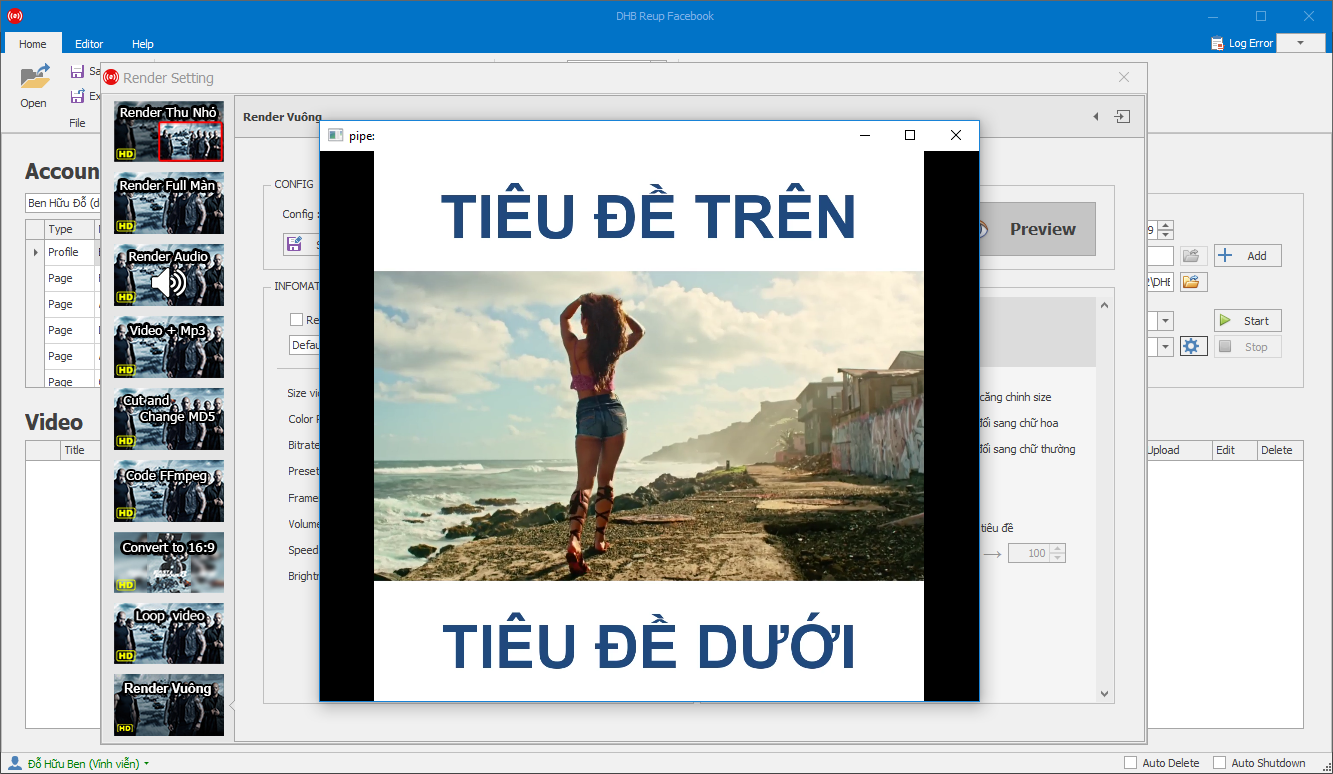
Square Render (Only available on DHB Upload Facebook): This feature renders a 16:9 video into a square format. It adds top and bottom backgrounds and inserts text. It can automatically use the video title for rendering or let you customize it. Note that videos that are already square are not supported.
After rendering is complete, the result will look like the image.
Those are all the modes in the Render Setting feature of DHB Upload Youtube and DHB Upload Facebook. If you have any questions, please ask them here
Wishing you success!!!
Bình luận
Chưa có bình luận nào. Hãy là người đầu tiên!
Hướng dẫn tạo phụ đề, thuyết minh tự động cho Video bằng DHB Render
Trong bài viết này mình sẽ hướng dẫn bạn từng bước để thiết lập các tính năng, cài đặt API hoặc model AI, và sử dụng các bộ lọc có sẵn trong DHB Render để tạo, chỉnh sửa và tùy chỉnh phụ đề, dịch phụ
Read more →
Hướng dẫn sử dụng chức năng Resource trong DHB Render
Resource là chức năng giúp bạn có thể lấy ngẫu nhiên nguồn cho video, ảnh, âm thanh cho các phần tử trong bản mẫu Khi thêm các phẩn tử video, ảnh, âm thanh nếu thêm từ File thì khi sử dụng bản
Read more →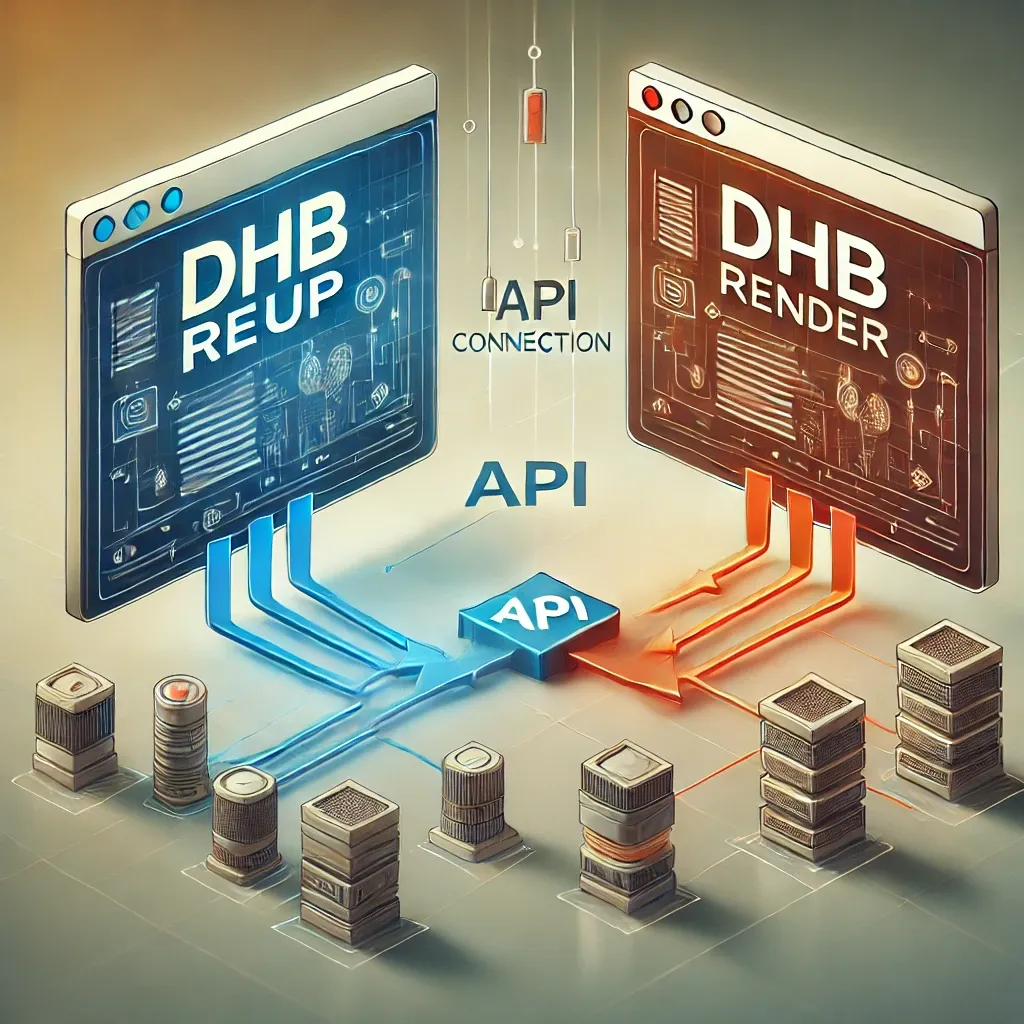
Hướng dẫn kết nối DHB Upload với DHB Render
Kết nối API giữa phần mềm DHB Upload với DHB Render giúp người dùng DHB Upload có thể dễ dàng sử dụng các bản mẫu (Template) kết xuất video của DHB Render ngay trong các phần mềm DHB Upload. 1. Lấy Toke
Read more →
Hướng dẫn sử dụng phần mềm DHB Render
DHB Render là giải pháp mạnh mẽ giúp bạn tạo ra các bản mẫu video (template) và kết xuất hàng loạt video một cách nhanh chóng. Với giao diện trực quan và các tính năng đa dạng, DHB Render hỗ trợ bạn
Read more →