
How to Attach a Shopping Cart When Uploading Videos with DHB Upload TikTok
TikTok now supports attaching a shopping cart to products uploaded through the website. This article will guide you through the setup steps to attach a shopping cart to your video.
Notes on audio and copyright
Note: Currently, if you post a video with an attached product without editing it, TikTok will mute the audio and may increase your Violation Score. Therefore, the software will automatically choose a random track from the recommended sounds section to help the video pass the copyright check.
You should not reuse sales videos from other TikTok channels without editing them first, as they can easily violate TikTok product promotion copyrights.
Disclaimer: The software does not guarantee that using random music tracks will completely prevent copyright violations. Users are responsible for the content they upload and any consequences that may arise, if any.
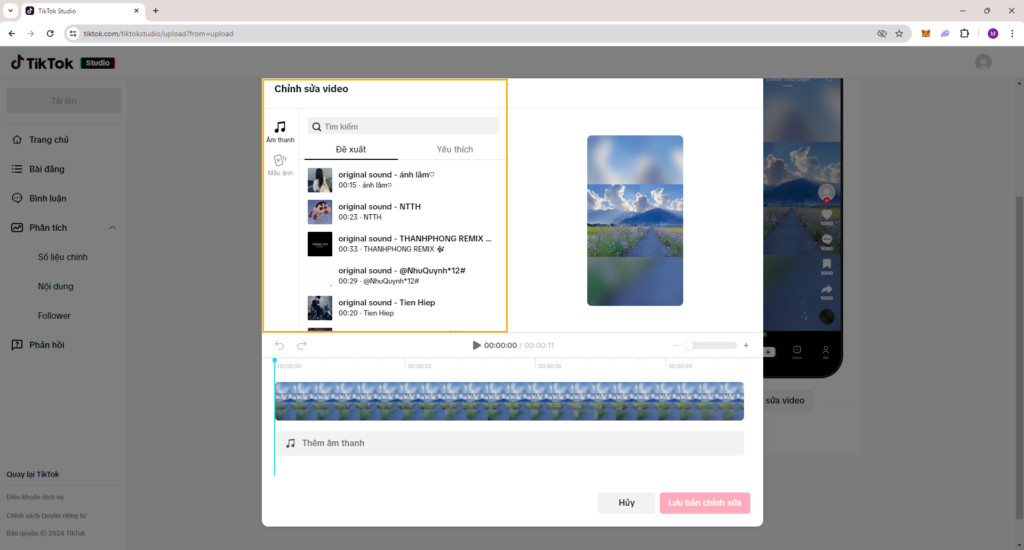
Step 1: Set up the shopping cart for the account
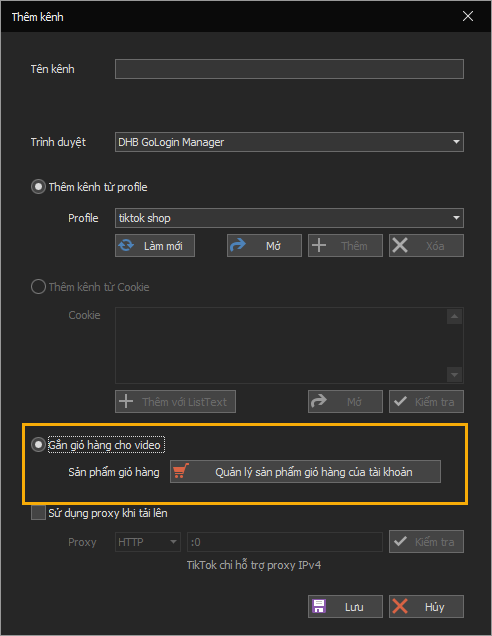
You need to log in to the account you want to upload with first.
After you have logged in successfully, the shopping cart attachment section will appear, and you can tick the option to attach a shopping cart to the video.
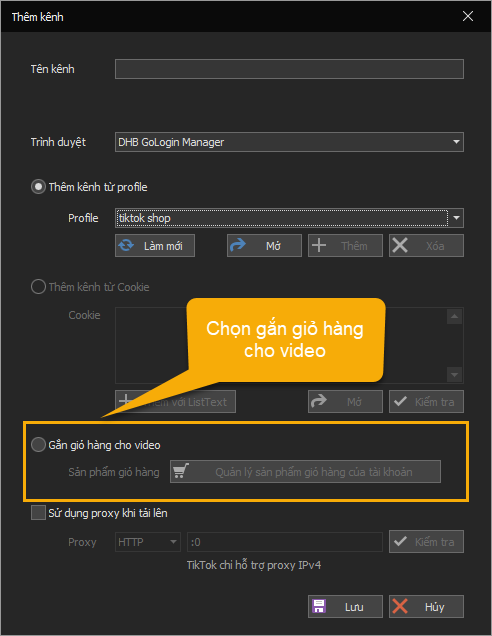
After selecting the shopping cart attachment option, wait for the software to scan all products that were previously added to the account.
Note: The software can only scan products that are already available in the account's shopping cart.
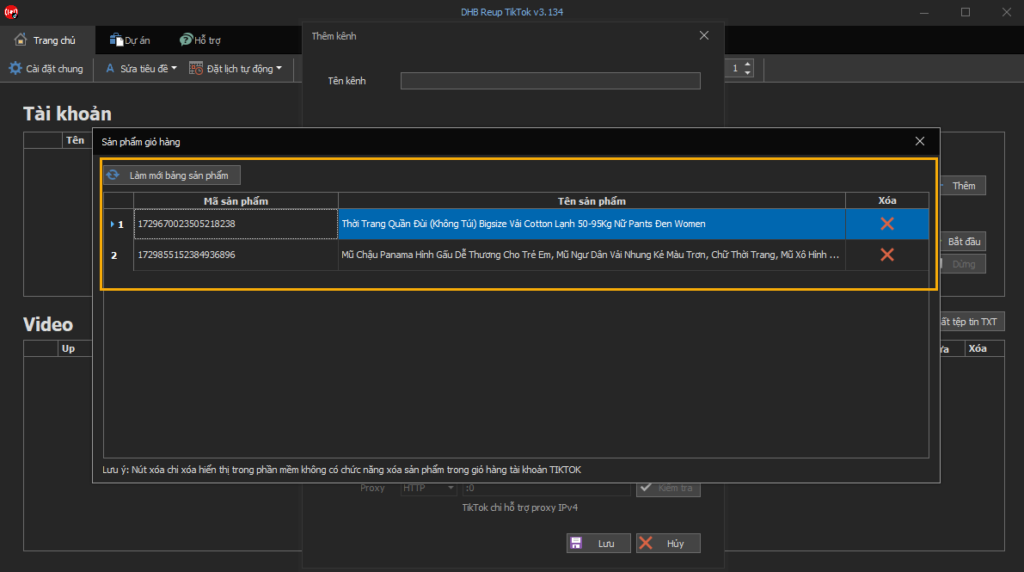
Once the scan is complete, review the products in the account. If you want to remove any product from being displayed in the software, select delete.
You can also directly edit the display name of the shopping cart.
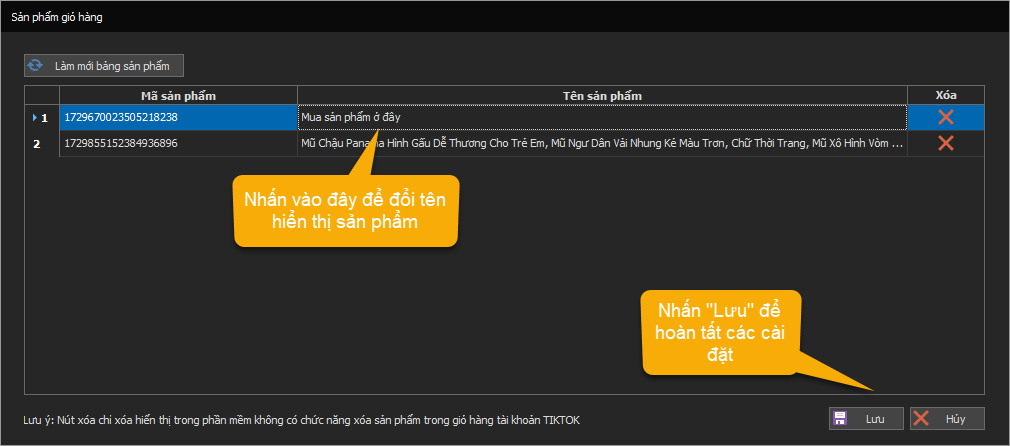
Once the account's shopping cart product management button lights up, it means you have completed the shopping cart setup steps for the account. Then click the "Save" button below to finish.
Step 2: Add products to the video
After successfully adding the shopping cart list, proceed to add products to the video.
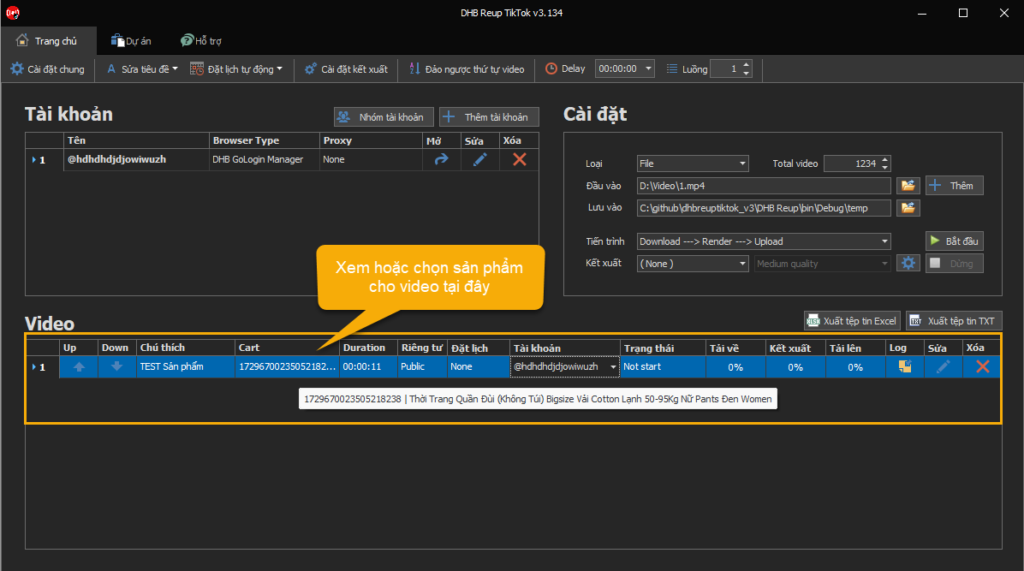
When you add a video to the table and select an account that has products, the software will automatically select the first product in the list. You can freely edit the products for the video in the table.
In addition to selecting manually, you can also bulk-select products for videos when working with a large quantity.
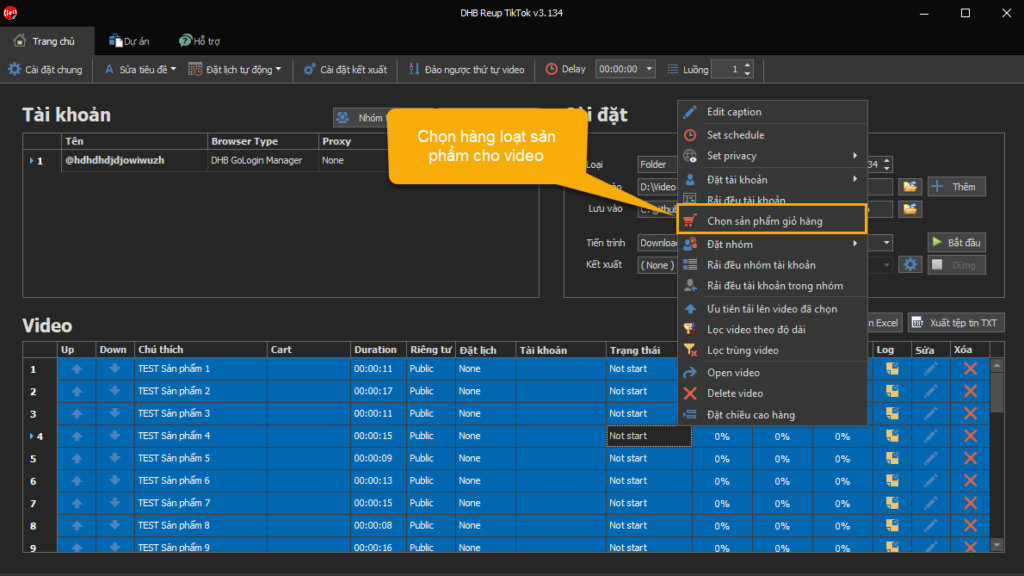
After completing the selection, you can now upload a video with an attached shopping cart.
For any questions, please contact us through our website and fanpage
https://dhbtools.com/
http://m.me/dhbtools
https://www.facebook.com/dhbtools
Bình luận
Chưa có bình luận nào. Hãy là người đầu tiên!

Hướng Dẫn Chi Tiết Chức Năng Theo Dõi Kênh – Phần Mềm DHB Upload TikTok
Chức năng Theo dõi kênh cho phép bạn thêm các luồng theo dõi (monitor channels), tự động quét nội dung mới từ các nền tảng (YouTube, TikTok, Facebook) và đăng theo cấu hình bạn đặt sẵn.
Read more →
Hướng dẫn lấy Cookie TikTok
Vui lòng không bỏ qua các bước, chữ và ảnh nội dung bài viết hướng dẫn! Bước 1: Mở trình duyệt đã đăng nhập sẵn tài khoản TikTok. Nếu chưa có hãy tạo tài khoản Tại trang chủ nhấn chuột phải và chọn Inspect hoặc F12 để vào Dev Tools
Read more →
Hướng dẫn thêm API Captcha vào DHB Upload TikTok
Hiện tại phần mềm đã hỗ trợ HMCaptcha,AchiCaptcha và tương lai sẽ hỗ trợ thêm nhiều dịch vụ API Captcha từ bên thứ 3 khác để các bạn có thể tùy chỉnh và đa dạng hơn. Lưu
Read more →
Hướng dẫn thêm kênh TikTok sử dụng phần mềm DHB Upload TikTok
Hiện tại các bạn đã có thể chọn sử dụng nhiều trình duyệt khác nhau khi sử dụng phần mềm DHB Upload TikTok mà không cần đổi qua lại giữa các tick. Dưới đây sẽ là các bước hướng dẫn thêm tài khoản.
Read more →