
How to Use DHB Upload Youtube
In this article, I’ll guide you through how to use DHB Upload Youtube version v6.47. Other versions work in a similar way.
Launch and log in to the tool
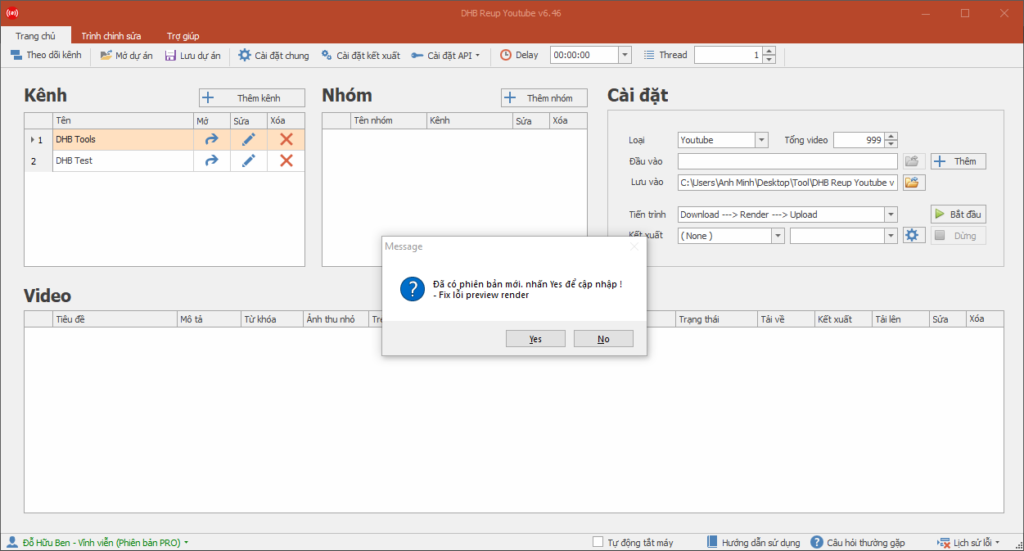
First, run the DHB Upload.exe file in the downloaded tool folder. If an update notification appears, click yes so the tool can update to the latest version. Once the update is complete, the tool will open the latest version. Enter the username and password sent to your email, then click login.
Enter the APIs in API Setting
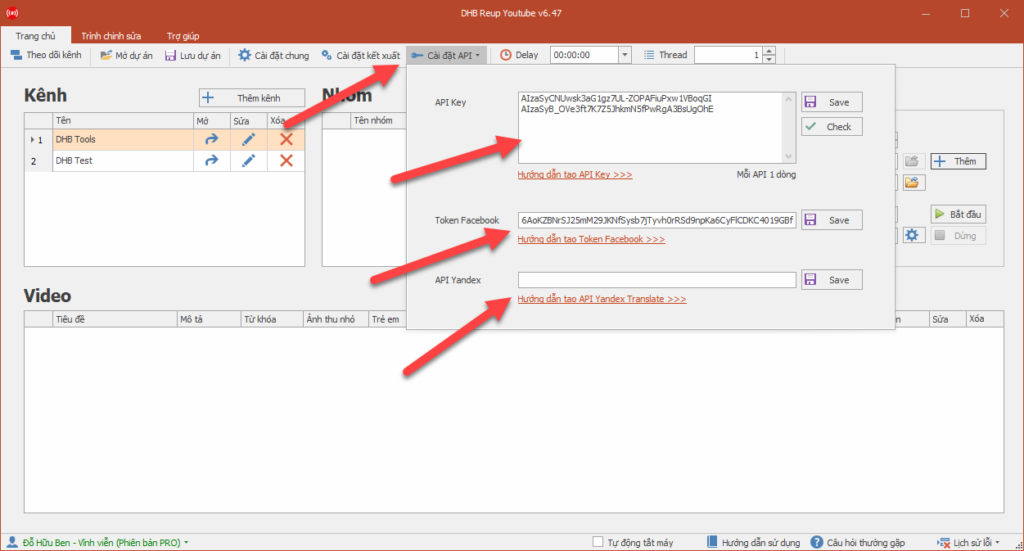
After logging in to the tool, the interface will look like this. First, to use the tool, you need to enter the APIs for the tools by clicking API Setting and clicking the lines below to watch the API creation tutorial videos. If you do not use a certain API, you do not need to create it. Guide to getting an API key
- The API Key is used to retrieve video, channel, and playlist information on Youtube
- The Facebook Token is used to retrieve video and page information on Facebook
- The Yandex API is used if you use the title, description, and tag translation feature
Add a channel to the tool
After entering the APIs, you need to add a channel to the tool so you can upload to that channel. In version 6.47, the tool uploads videos to Youtube through the Firefox browser (simulated Upload). Therefore, you need to download and install Firefox using the link below. Note that you should only download from the link below because the tool only works with the English version of Firefox. You can get the English version on the Firefox website. If you download the Vietnamese version, the upload will fail.
- Firefox 64bit : Download
After installing Firefox, go back to the tool interface to add a channel to the tool
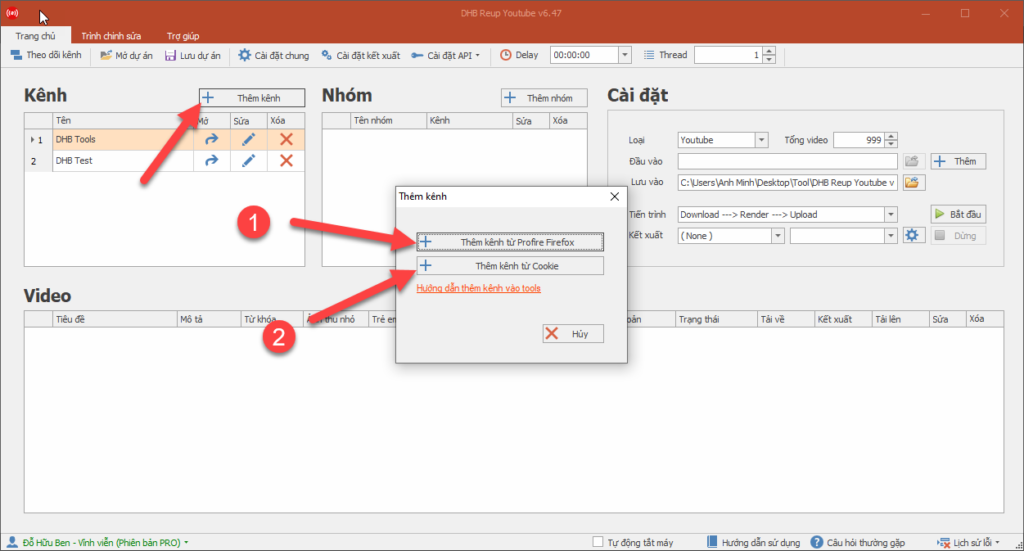
Here I have 2 options for adding a channel. I’ll place the tutorial video links for adding channels below
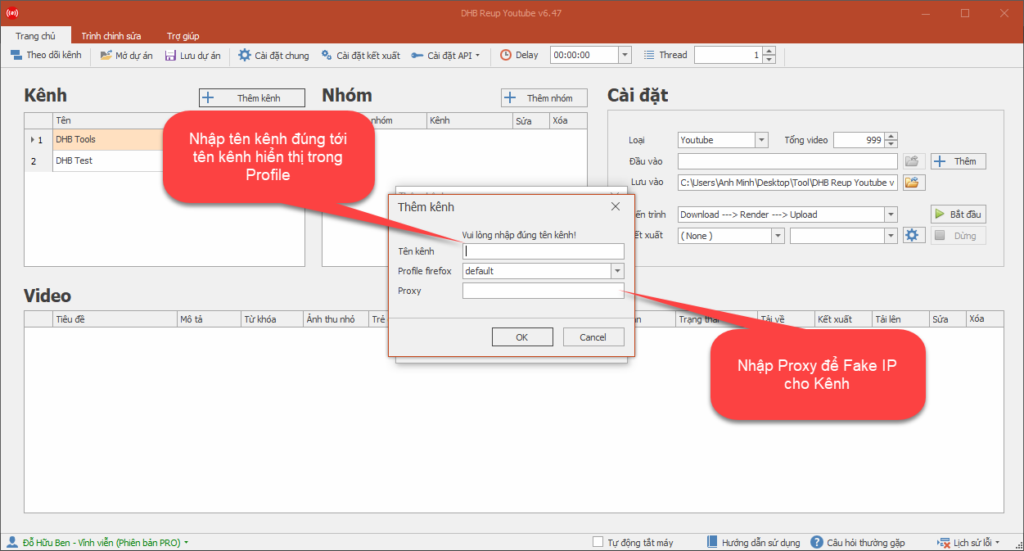
Enter a Proxy to fake the IP for the upload channel (used for foreign channels).
Add videos to the tool
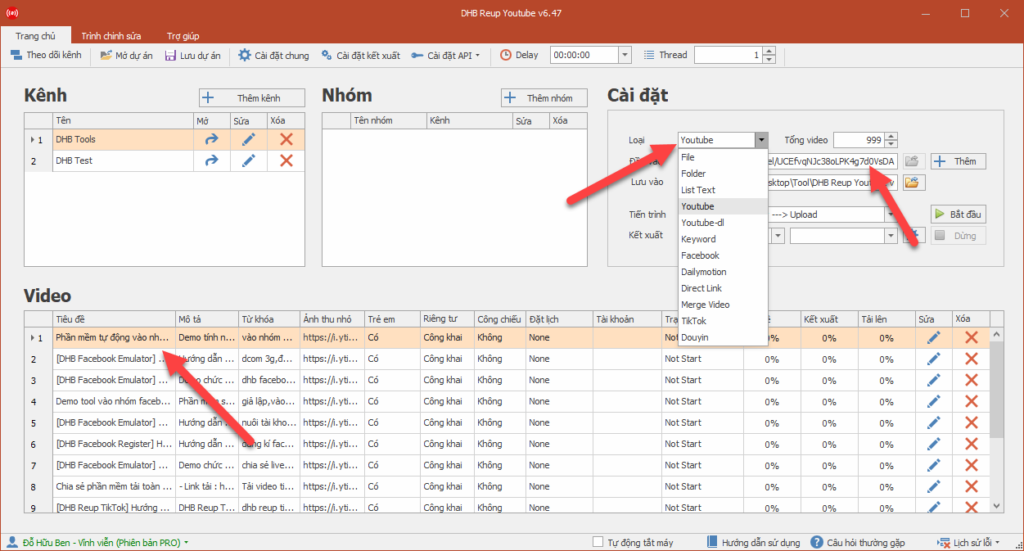
Next, you need to add videos to the tool for upload. The tool supports adding from the following sources:
- File (Add videos from File)
- Folder (Add videos in bulk from Folder)
- List Text (Add videos from a .txt text file)
- Youtube (Add videos from a Youtube link, playlist link, or channel link)
- Youtube-dl (Add videos from all links listed at here )
- Keyword (Add videos from keywords)
- Facebook (Add videos from a Facebook video link or Facebook fanpage link)
- Dailymotion (Add videos from a Dailymotion video link, playlist link, or channel link)
- Direct Link (Add videos from direct links, download links from movie websites)
Select the type you want to add, then paste the link into the input field and click "Add". The added video will appear in the video table
Edit video details and schedule videos
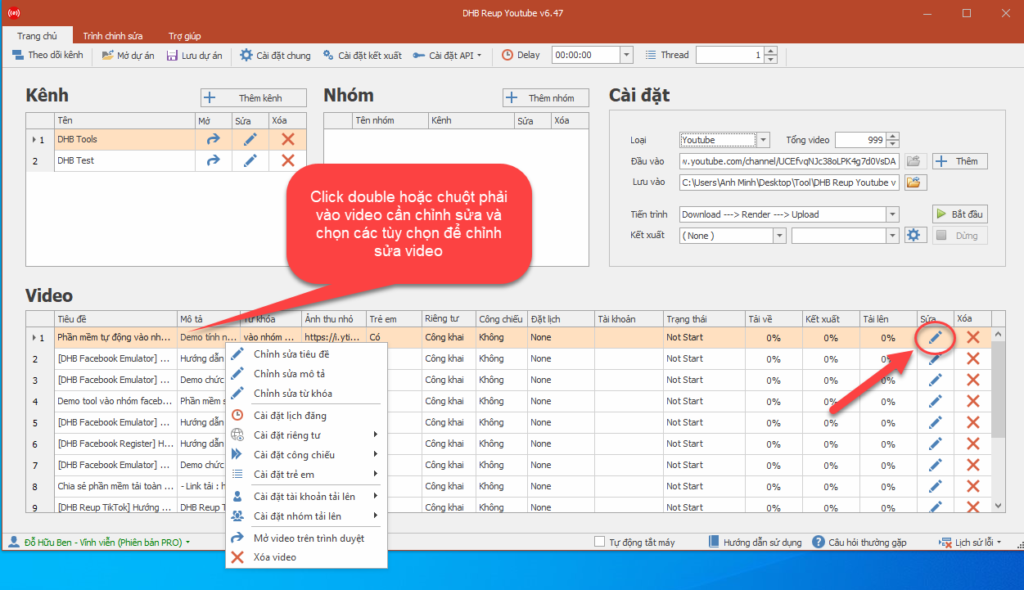
You can edit the title and description by right-clicking the video you want to edit and selecting the options to edit the video, or click the Edit icon on that video to edit more information
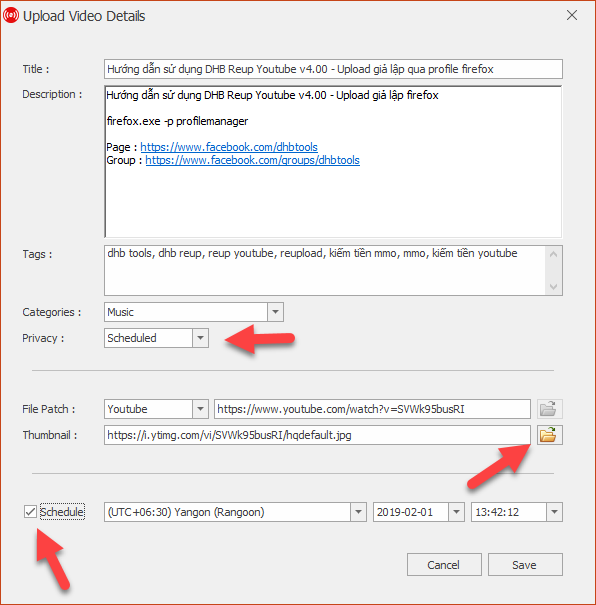
After clicking the Edit icon on the video, you can schedule the video by setting Privacy to Scheduled, then checking Schedule and selecting the time zone, date, and time for the video to go public.
You can also change the video link or thumbnail image link. If you already have a thumbnail image, you can change the path to the thumbnail image by clicking the open button
Select the upload account for videos
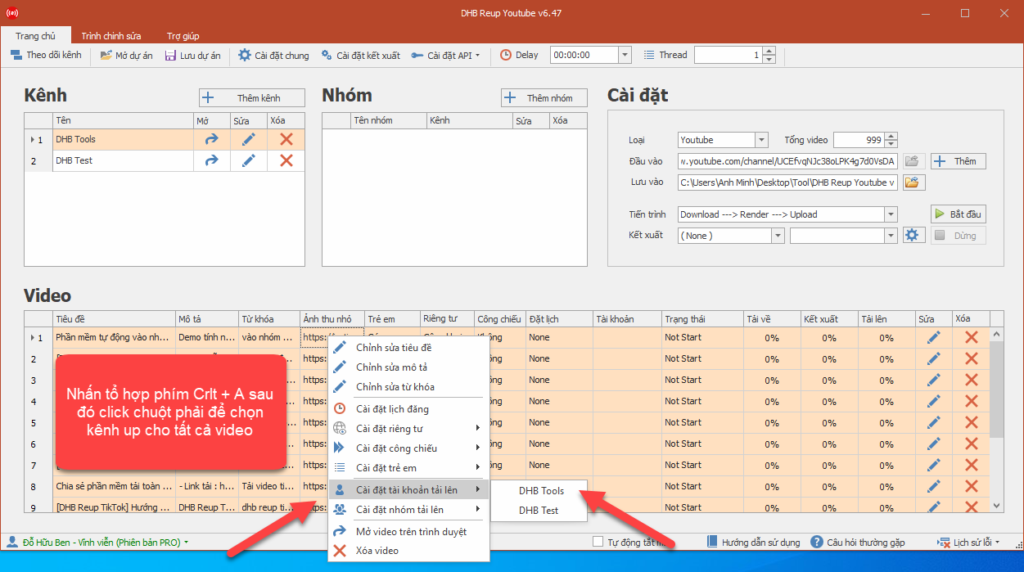
After editing the video, you need to select the account to upload the video by clicking the Account cell of the video you want to upload in the video table and selecting the account to upload with. Here, the tool will list all channels in the channel table
So what if you add multiple videos to the tool and need to select accounts in bulk? Just press CTRL + A, then right-click the video table, choose Set Account Upload, and select the account you want to upload to. The tool will automatically select that account for all videos in the tool
Tool settings
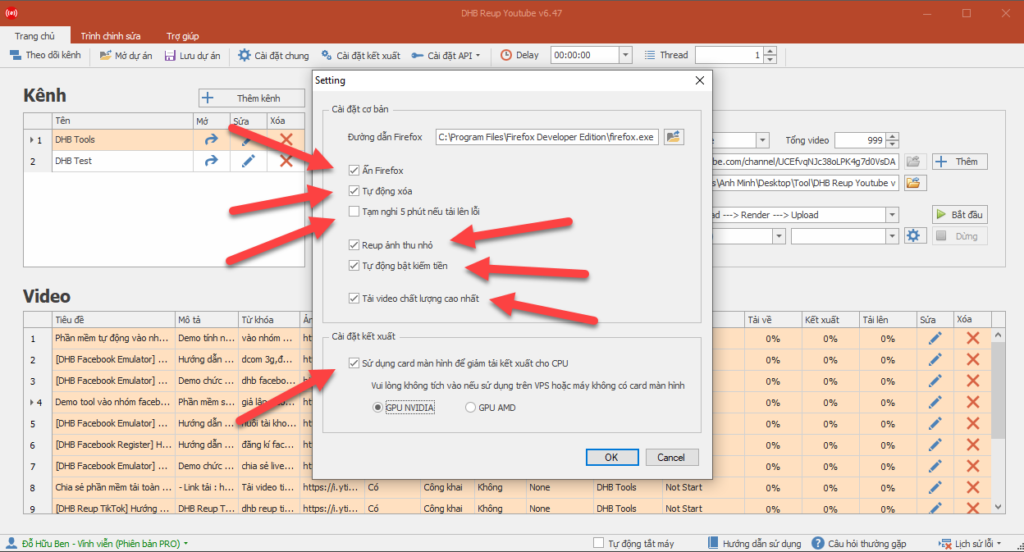
After selecting the upload account, you should also note a few tool settings.
- Hide Firefox: when checked, the tool will automatically hide Firefox during upload.
- Auto delete: when checked, the tool will automatically delete temporary files after finishing each video to prevent memory overflow when used on a VPS.
- Pause for 5 minutes if upload fails: the tool will pause uploading for 5 minutes when an upload error occurs
- Upload thumbnail image: the tool will upload together with the thumbnail image
- Automatically enable monetization for channels that already have monetization enabled
- Download videos at the highest quality: the tool will download videos at maximum quality
- Use the graphics card for rendering
Delay means waiting time. For example, if you set the delay to 01:00:00, after the tool finishes the first video, it will wait 1 hour before running the second video.
Thread means the number of threads running at the same time. If you set thread to 2, the tool will download > render > upload 2 videos at the same time. I recommend setting thread to 1. If you are not uploading and only rendering, you can set it higher
Process means the running workflow. If you only want to download, select Download as the process. If you want to Download then Render without uploading, select Download > Render. And if you select Download > Render > Upload, the tool will perform the entire workflow
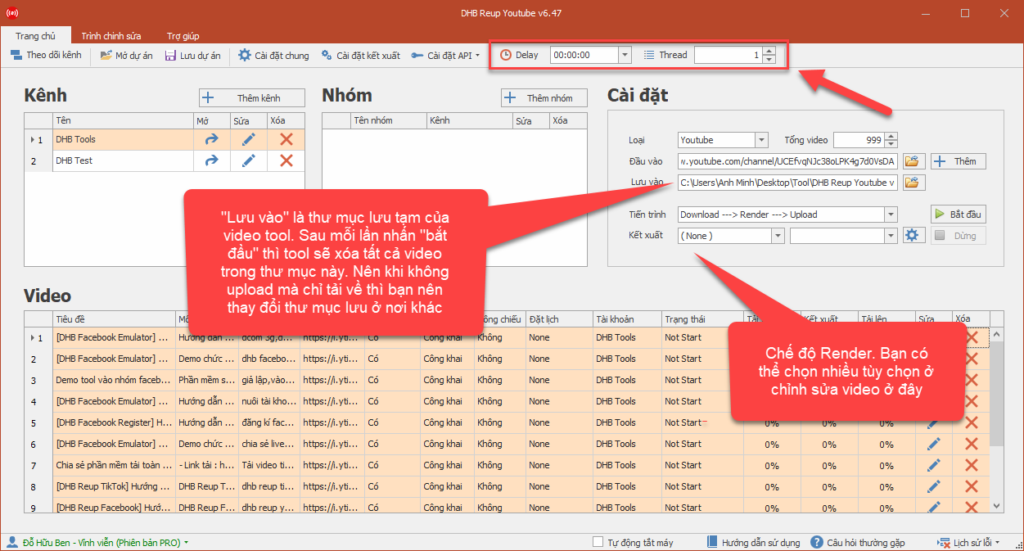
After finishing the setup, you can click Start to run.
If you have any questions, you can contact me via Page: https://www.facebook.com/dhbtools/
Wish you success!
Bình luận
Chưa có bình luận nào. Hãy là người đầu tiên!

Hướng dẫn khắc phục lỗi không tải được video YouTube trên DHB Tools
Trong quá trình sử dụng DHB Tools để thêm video vào dự án. Đây là lỗi khá phổ biến và không phải do phần mềm bị hỏng, mà thường liên quan đến trình duyệt và quyền truy cập hệ thống. Cài đặt Mozilla F
Read more →
Hướng dẫn lấy cookie Youtube sử dụng cho DHB Upload Youtube
Cách lấy Cookie Youtube cũng giống như các bước ở các nền tảng trước mình hướng dẫn trước đó. Các bạn thưc hiện theo các bước sau nhé nếu ai đã tiếp cận và sử dụng cookie facebook, ixigua từ hướng dẫ
Read more →
Hướng dẫn chuyển Profile Upload Youtube V8
Hướng dẫn chuyển Profile Firefox đã đăng nhập sang nhiều khác nhau mà không cần đăng nhập lại (hoạt động tương tự Firefox Protable) để sử dụng phần mềm Upload Youtube V8. Ở các phiên bản trước đối v
Read more →
Hướng dẫn thêm Profile Upload Youtube
Hướng dẫn thêm Profile sử dụng cho phần mềm Upload Youtube V8 để upload Ở các phiên bản trước các bạn cần làm các bước như tạo Profile với hộp thoại run và đăng nhập trước v.v... ở phiên bản này thì
Read more →