
How to Create a VPN to Fake IP with OpenVPN and a Vultr VPS
Hello everyone! In this article, I’ll guide you through creating a VPN with a Vultr VPS.
Step 1: Rent a VPS on Vultr
First: Go to the website https://www.vultr.com/. Then log in.
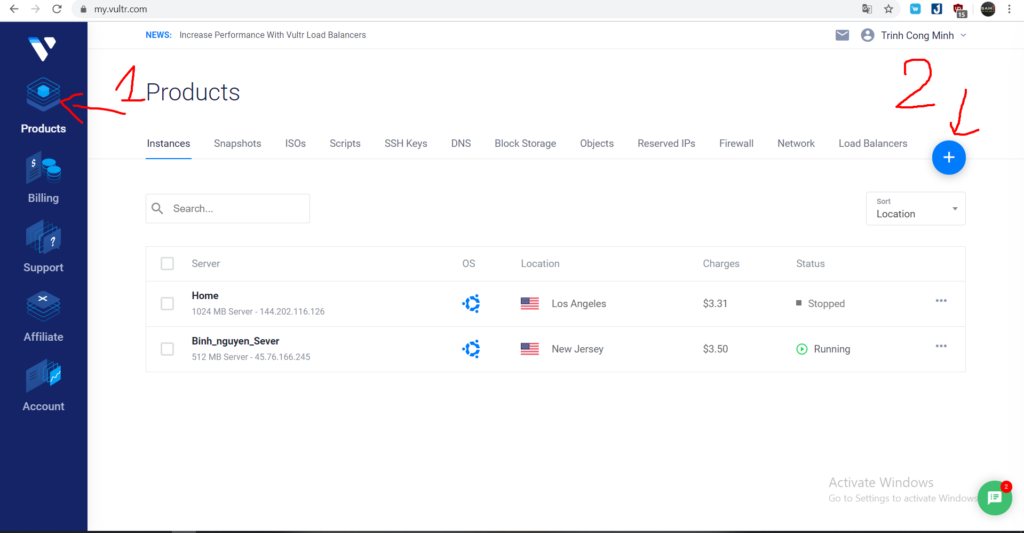
Next, select Products and click the plus sign + as shown in the image.
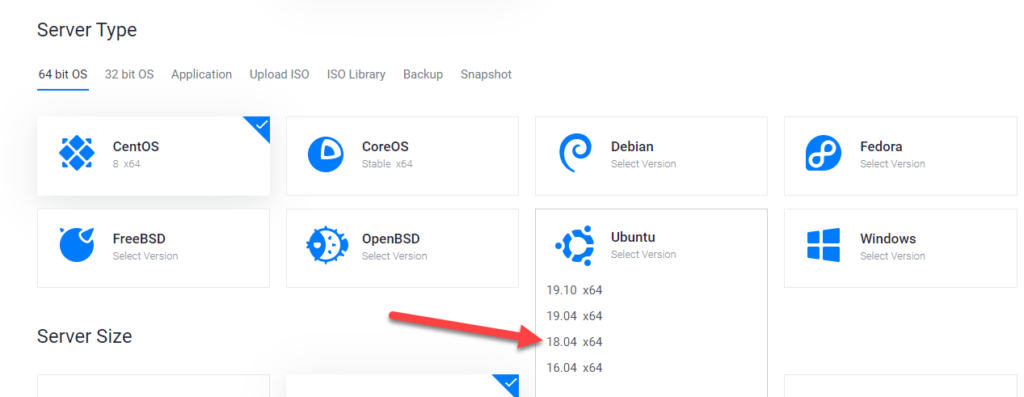
Next, choose the server you want to rent, then select Ubuntu 18.08 x64.
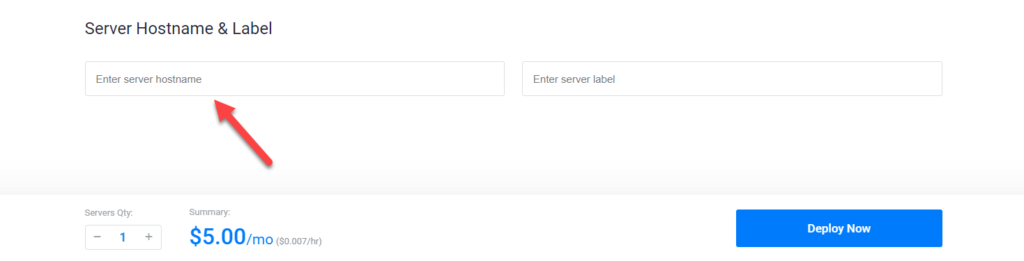
Next, scroll down to the naming section. Enter a name, then click Deloy now to start renting it.
Note: I recommend that if you are using it as a server, the $5 plan is enough. ^^
Result: If it appears like this, it means you have rented it successfully.

Step 2: Download Bitvise SSH Client and OpenVPN
Next, to export the file, you need to download OpenVPN and Bitvise SSH Client.
Bitvise SSH Client download link: Download Now!
OpenVPN download link: Download Now!
After downloading, extract the files and open Bitvise SSH Client first.
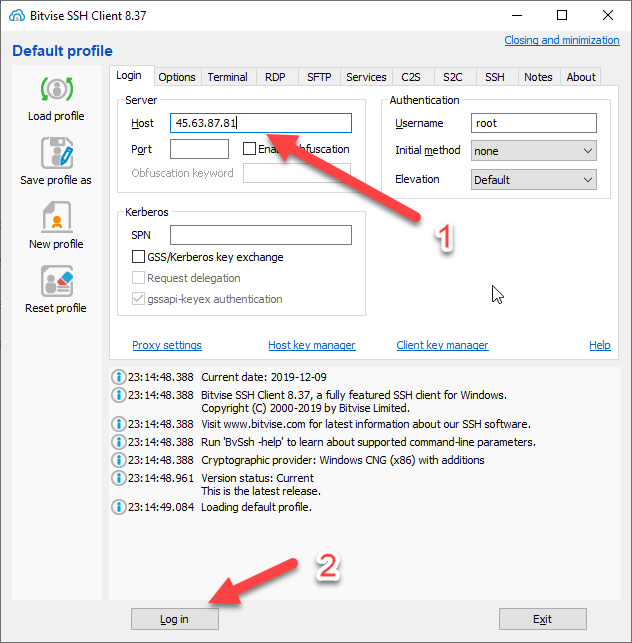
The interface will look like this.
Step 3: Log in to the VPS with Bitvise SSH Client
For the Host field, go back to the server you just rented. Double-click it to display the information panel.
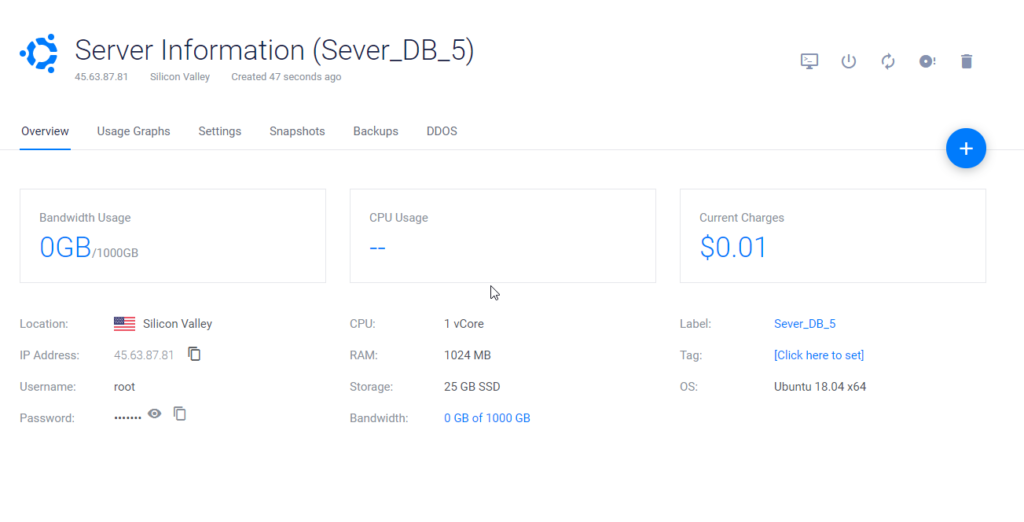
To enter it in Bitvise, copy the IP Address, paste it into Host, then click Login.
After logging in, it will appear like this:
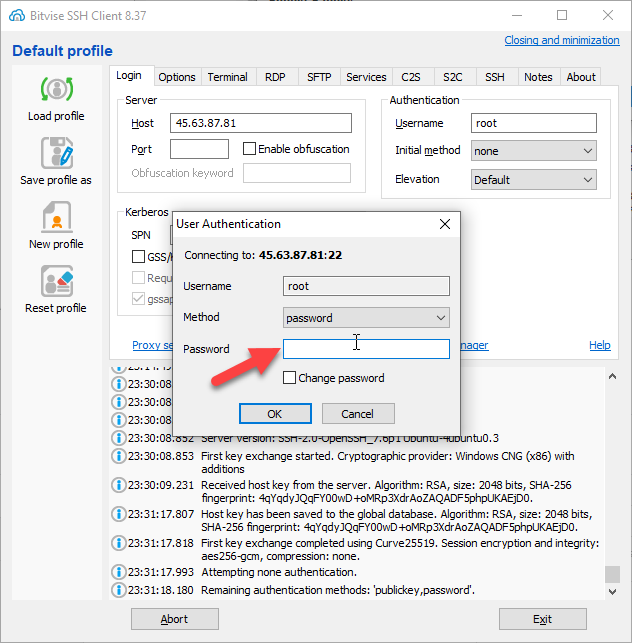
Enter the Password. To get the Password, use the Vultr server you rented, in the same section where the IP Address is shown.
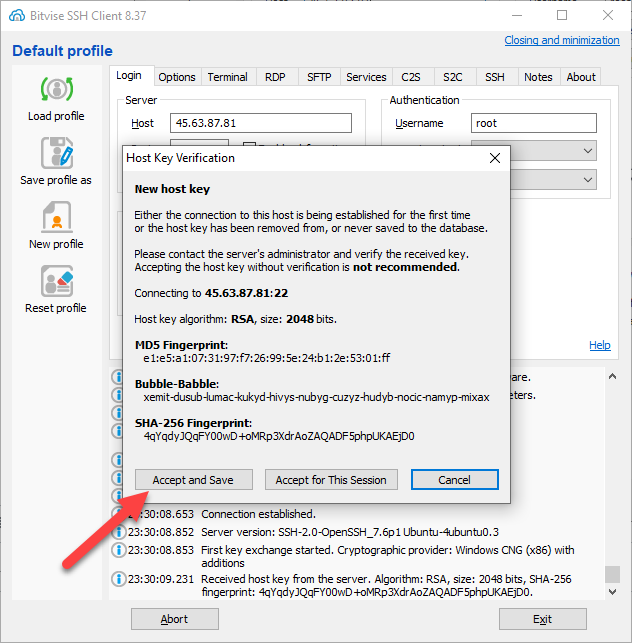
Select Accept and Save!
Step 4: Install OpenVPN on the VPS and export the config file
After that, a black root window will appear. Copy the command below, paste it in, and press Enter.
wget https://git.io/vpn -O openvpn-install.sh && bash openvpn-install.sh
Copy the command above into it and press Enter.
It will show a panel like this.
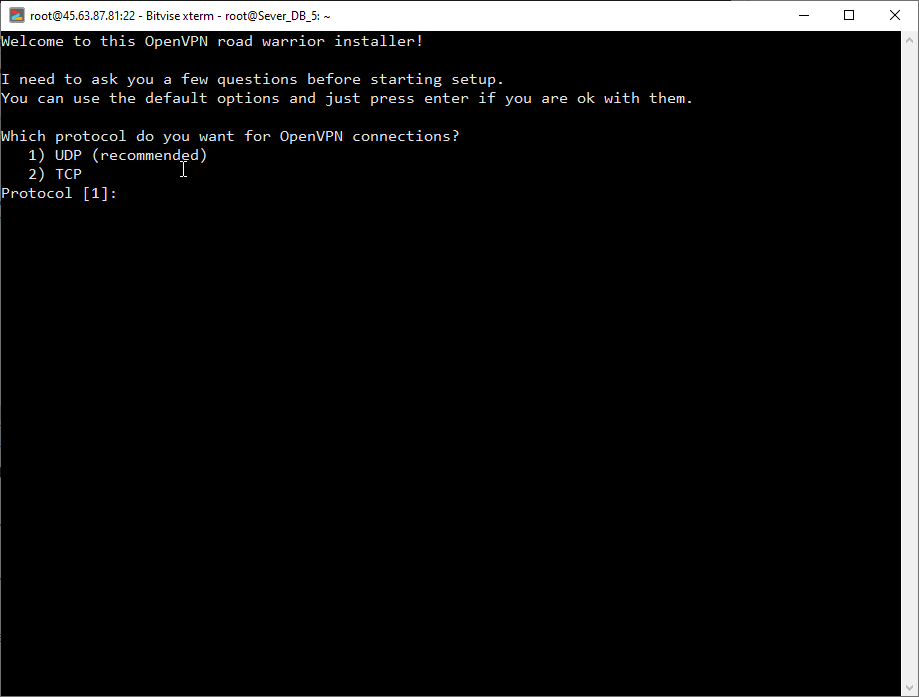
In this step, press number 1.
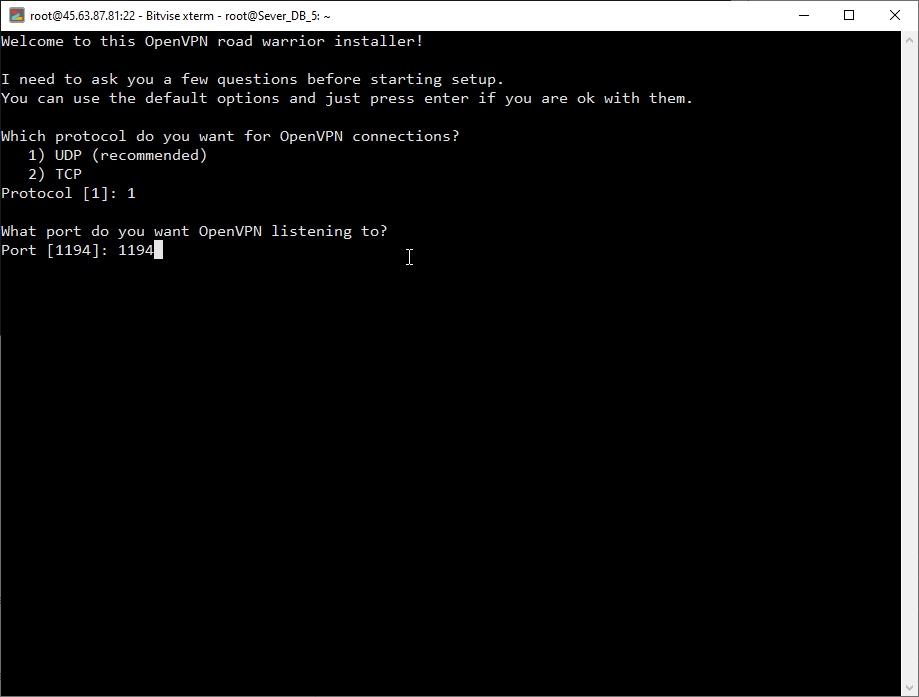
Next, enter 1194.
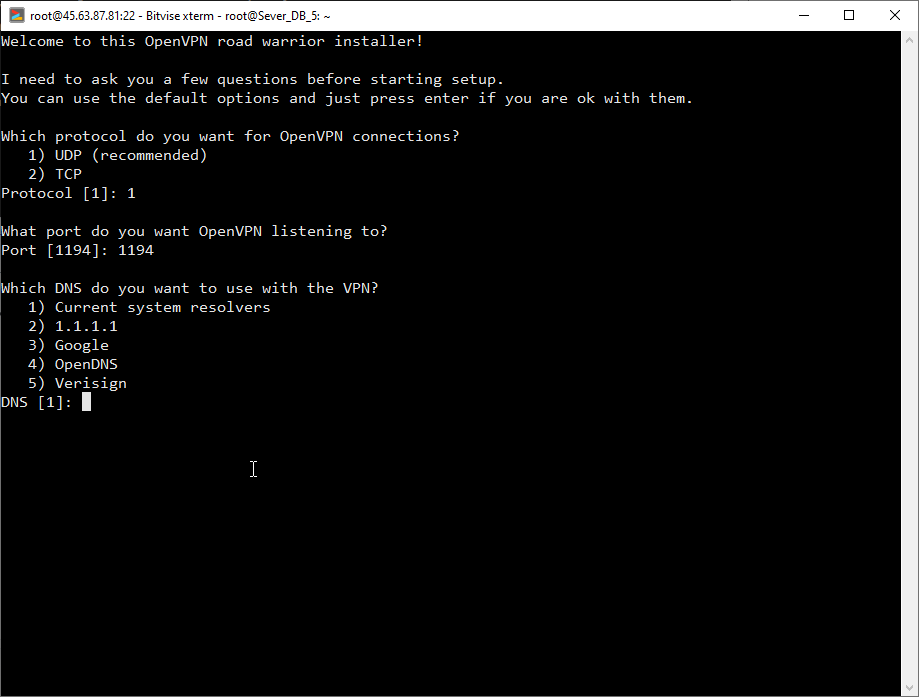
Next, press number 1, Current system resolvers.
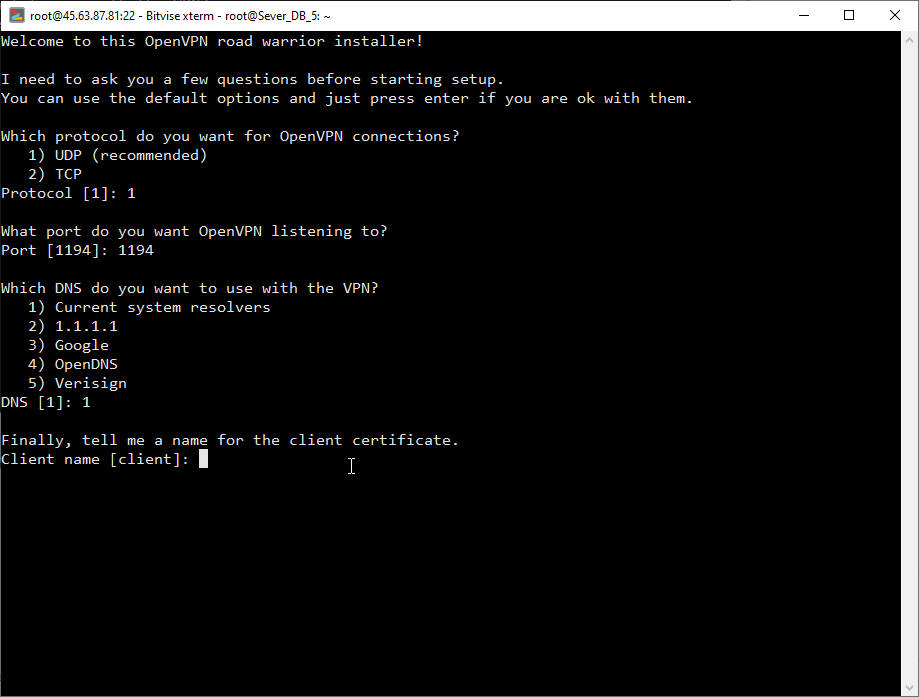
In this final step, enter a name, then press any key and it will automatically generate the file.
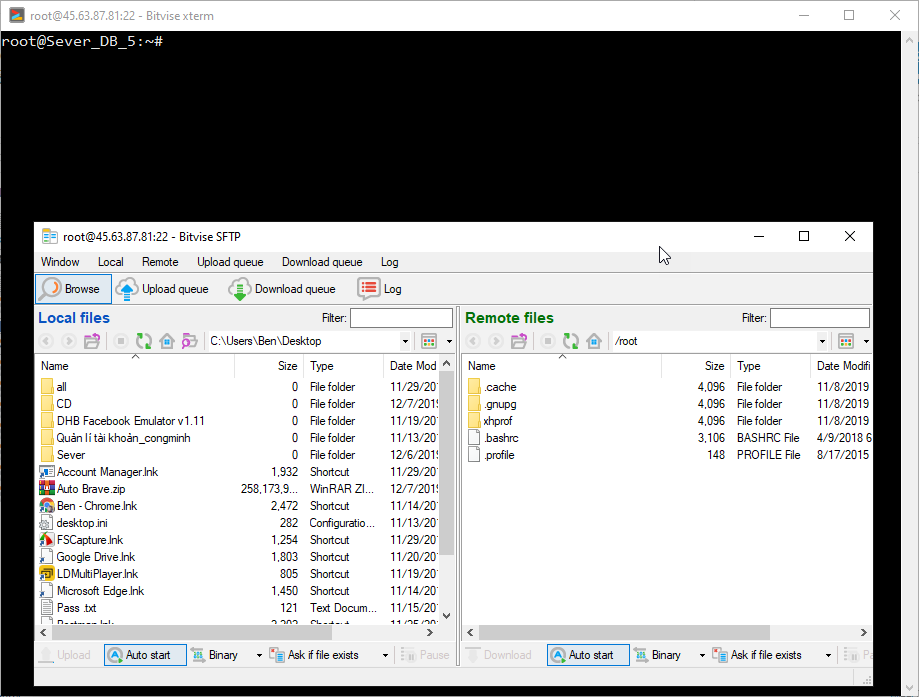
When this panel appears, it means the setup is successful. Click the spinning button on the right, which means Refresh, and the file will appear. Then drag it to the main screen.
Step 5: Connect to the VPN with OpenVPN
After that, open the OpenVPN you downloaded earlier.
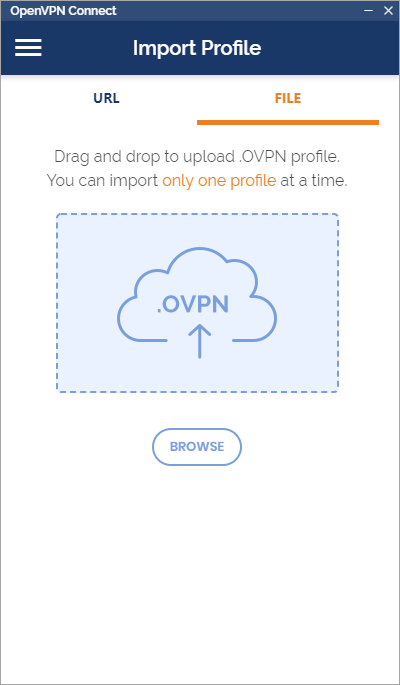
Here is the OpenVPN interface. Click the file section, then drag the file exported from Bitvise directly into it.
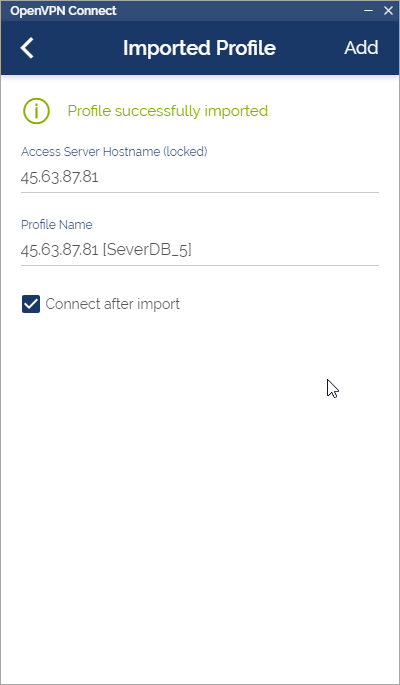
When this notification appears, click ADD in the right corner.
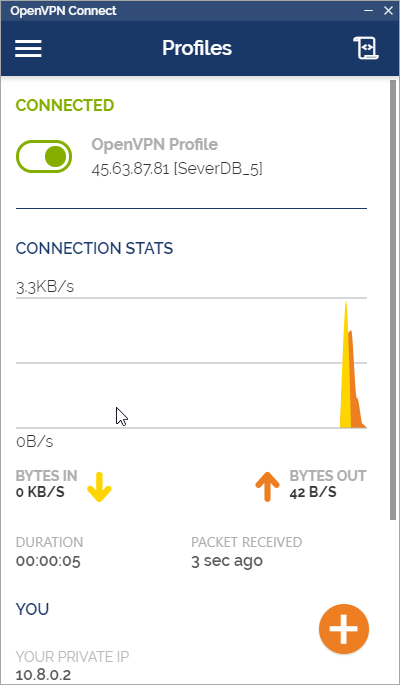
When it shows Connected like this, it means the setup is successful. If you have any questions, please contact: https://www.facebook.com/dhbtools/
Thank you!
Bình luận
Chưa có bình luận nào. Hãy là người đầu tiên!

Hướng dẫn tạo người dùng hệ thống quản lý Page trên BM sử dụng DHB Upload Facebook
Hiện tại Facebook đã hỗ trợ tải lên với tài khoản liên kết với Bussiness với tính năng "Người dùng hệ thống". Ưu điểm chính của tính năng này các bạn sẽ không cần đăng nhập tài khoản cầm Page và cũng không cần cấp quyền cho nhiều tài khoản cầm Page như trước nữa. Dưới đây sẽ là hướng dẫn chỉ tiết sử dụng tính năng này ở DHB Upload Facebook
Read more →
Hướng dẫn sử dụng DHB Comment Facebook
Nếu bạn đang tìm một công cụ hỗ trợ Affiliate số lượng lớn, quản lý nhiều Page hoặc triển khai nội dung quảng cáo trên Facebook, DHB Comment Facebook là một lựa chọn phù hợp để tối ưu quy trình và giảm bớt các thao tác thủ công lặp lại.
Read more →
Hướng dẫn tự soạn bình luận với AI trên DHB Comment Facebook
Tính năng Soạn bình luận với AI giúp tự động tạo nội dung bình luận dựa trên từng bài viết, thay vì phải viết thủ công từng comment. Bạn có thể tùy chỉnh độ dài, phong cách nội dung và xem lại kết quả trước khi gán vào bài viết.
Read more →
Hướng Dẫn Lấy API Google Drive v3
Google Drive API v3 giúp bạn kết nối ứng dụng, website hoặc phần mềm với Google Drive để lấy thông tin file, kiểm tra file, đọc danh sách file hoặc xử lý dữ liệu từ Drive.
Read more →