
Basic Guide to Using DHB GoLogin Manager
What is GoLogin?
GoLogin is an Anti Detect browser specially designed to hide and change browser “fingerprints.” Its goal is to prevent access tracking or identification by websites and online services. By emulating and managing browser attributes, GoLogin allows users to log in to and manage multiple social media accounts on the same computer while reducing the risk of accounts being locked or lost due to tracking or duplicate identification.
What is DHB GoLogin Manager?
DHB GoLogin Manager is software that helps create and manage profiles for the GoLogin application. Unlike creating profiles manually in GoLogin, DHB GoLogin Manager lets users create profiles in bulk without limits. While the free version of GoLogin only allows a fixed number of profiles and stores them on GoLogin’s server, which means profiles cannot be accessed when the account expires, DHB GoLogin Manager solves this by storing profiles on the user’s computer. As a result, even if the GoLogin account expires, users can still access and use their profiles as usual.
How to use DHB GoLogin Manager
Install GoLogin and register an account
To use DHB GoLogin Manager, you need to install GoLogin first. Download the GoLogin software here. After downloading, install it on your computer and open it. The interface will appear as shown below. Register a GoLogin account with your email and log in.
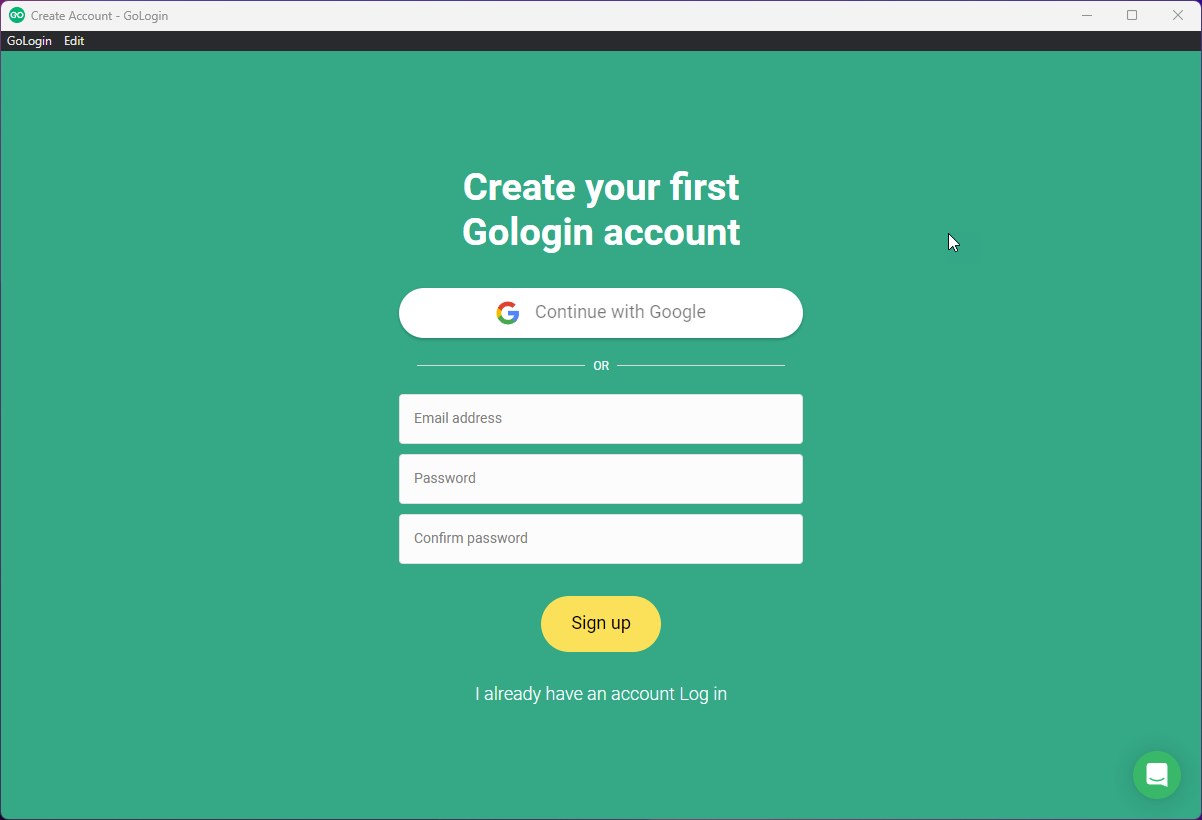
After registering successfully, proceed to create one Profile.
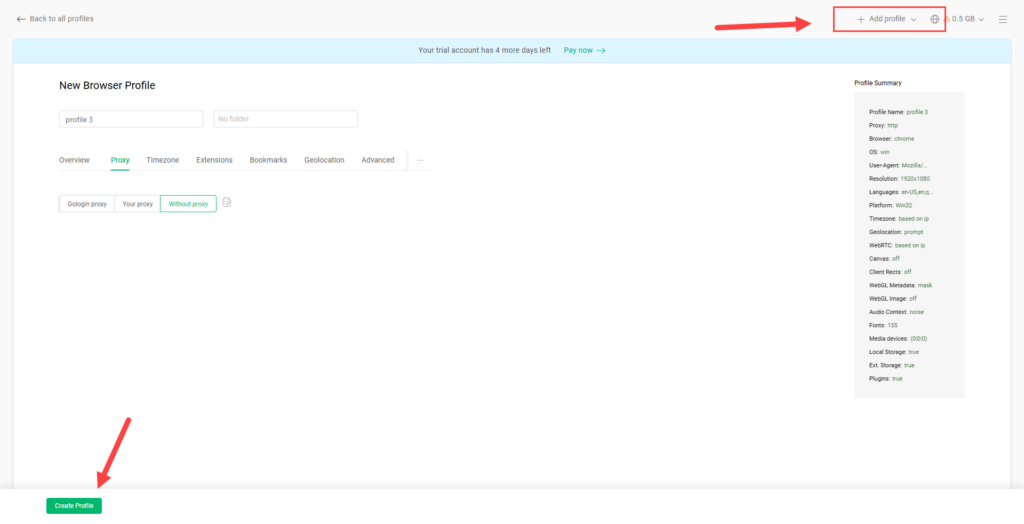
Connect the GoLogin API
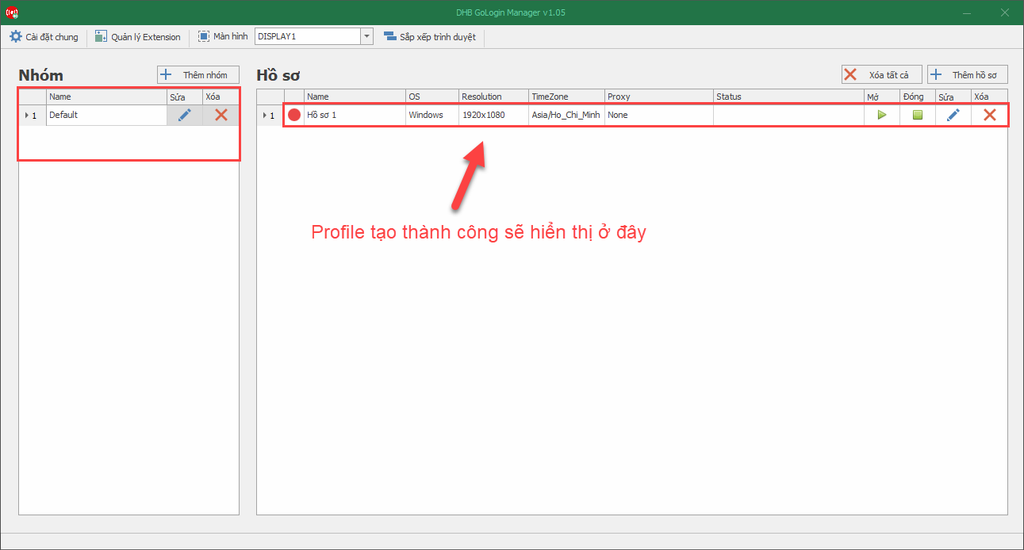
After the Profile is added successfully, it will appear on the main interface in DHB Gologin Manager -> General Settings -> Reload API -> Check API.
Here, the software automatically retrieves the GoLogin API instead of requiring you to get the API manually. Please stay logged in and keep the GOLOGIN software open during this process.
Add profiles in DHB GoLogin Manager
After confirming that the API can work, proceed to add profiles. While adding profiles in DHB Gologin Manager, please do not close the Gologin software to avoid errors.
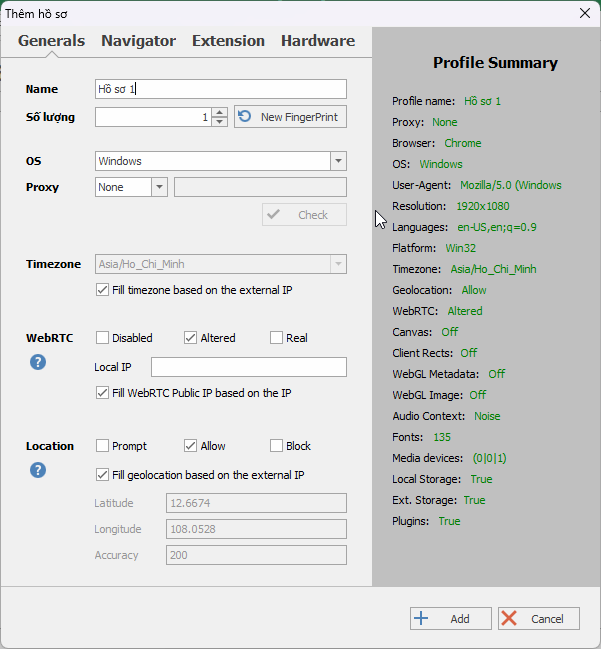
After the API is connected successfully, the Profile Summary section will display information similar to the following. You can edit browser information in the Navigator, Extension, Hardware, and other tabs. Remember to enter a name for the profile. Then click Add so the software can create the profile.
Manage and launch profiles
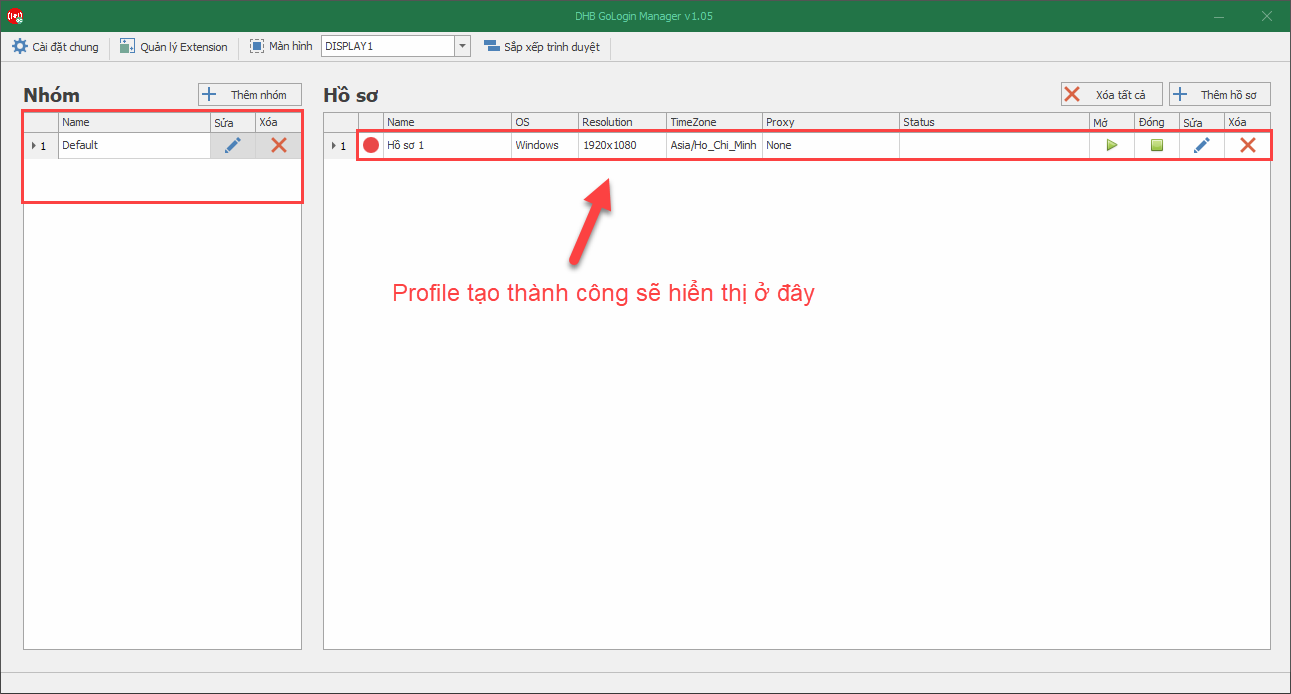
After creation is successful, the Profile will appear here. You can also manage Profiles by group in the Groups section as shown in the image. To launch a profile, select the open button. Similarly, to close it, you can either close the browser or select the close button.
Bình luận
Chưa có bình luận nào. Hãy là người đầu tiên!
Hướng dẫn thêm trình duyệt DHB Gologin vào phần mềm DHB Upload
Nếu các bạn đang sử dụng phần mềm DHB Gologin nhưng chưa biết liên kết các Profile vào trình duyệt DHB Upload thì đây là bài viết hữu ích dành cho bạn! Bước 1: Các bạn cần tạo các Profile ở phần mềm
Read more →
Hướng dẫn thêm Extension cho hồ sơ DHB GoLogin Manager.
Để thêm Extension cho hồ sơ DHB GoLogin Manager các bạn cần lên Chrome Store và cài đặt ứng dụng CRX Extractor/Downloader vào trình duyệt. Ứng dụng này có chức năng tải Extension về máy. Sau khi cài
Read more →
Hướng dẫn sử dụng DHB Gologin Manager
Phần mềm tạo và quản lý Profile Gologin cho người dùng DHB Upload.Trước tiên các bạn cần cài đặt Gologin bấm vào đây để tải về. Nếu các bạn đã cài đặt và có tài khoản Gologin thì bỏ qua bước này nhé!Sa
Read more →