
Fastest Way to Turn Off Windows Defender on Windows 10
Windows Defender is a free antivirus program preinstalled by Microsoft on Windows 10. In this article, I’ll show you how to turn off Windows Defender.
Method 1: Temporarily turn off Windows Defender in Settings
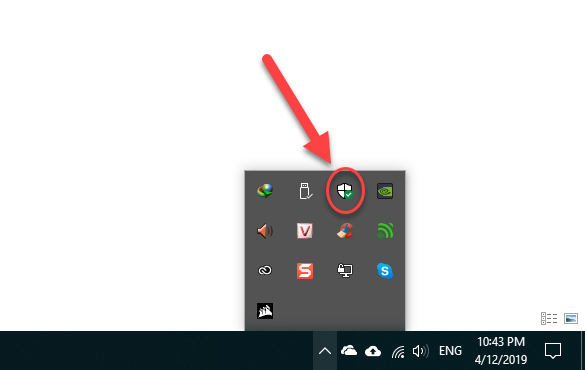
If you are using Windows 10 1803 or later double-click the Windows Defender icon on the Taskbar.
Select Virus & threat protection > Virus & threat protection settings.
Switch all 3 items below to OFF
Method 2: Turn off Windows Defender using Local Group Policy
If you use Windows 10 Pro or other editions such as Windows 10 Enterpriseor Windows 10 Education, you can use Local Group Policy Editor to completely disable Windows Defender on your computer.
1. Press the key combination Windows + R to open the Run command window.
2. In the Run command window, enter gpedit.msc there, then press Enter or click OKto open the Local Group Policy Editor window.
3. In the Local Group Policy Editor window, navigate to the key
Computer Configuration > Administrative Templates > Windows Components > Windows Defender
Note: On Windows 10 version 1803 or later, the Windows Defender option is replaced with Windows Defender Antivirus. Select this option and follow the same steps.
4. In the right pane, find and double-click the Turn off Windows Defender.
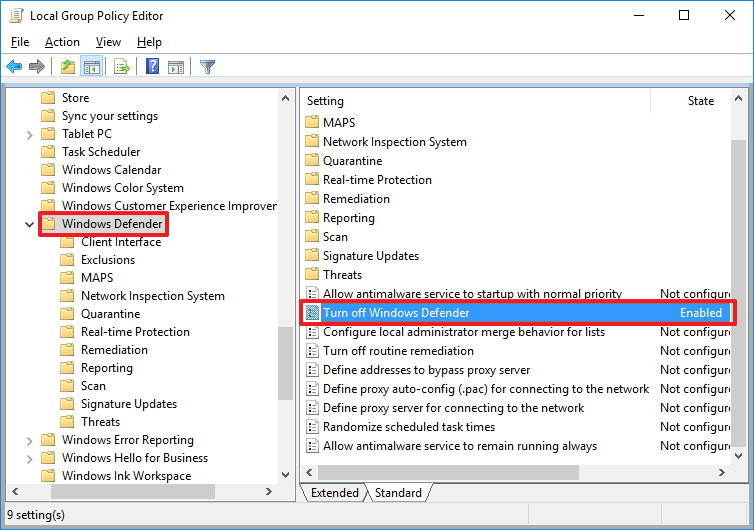
5. Select Enabled to disable Windows Defender.
6. Click Apply.
7. Click OK.
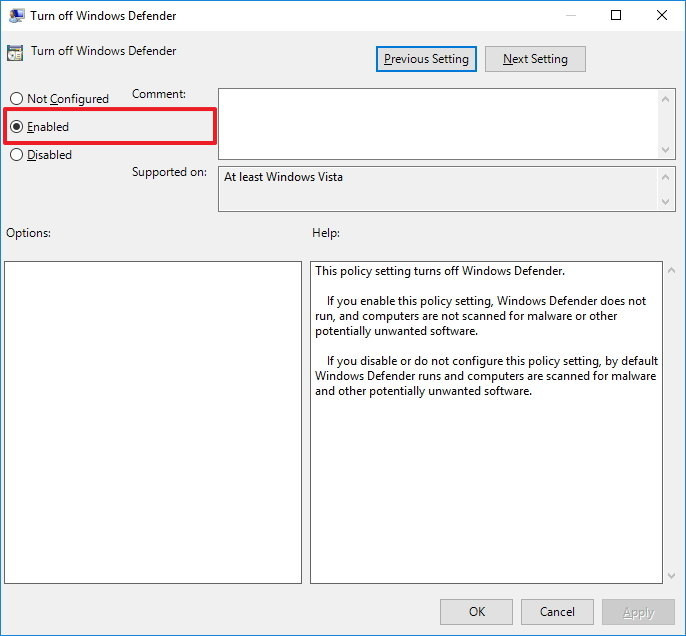
After completing these steps, simply restart your computer and Windows Defender will be turned off.
Good luck!
Bình luận
Chưa có bình luận nào. Hãy là người đầu tiên!

Hướng dẫn tạo người dùng hệ thống quản lý Page trên BM sử dụng DHB Upload Facebook
Hiện tại Facebook đã hỗ trợ tải lên với tài khoản liên kết với Bussiness với tính năng "Người dùng hệ thống". Ưu điểm chính của tính năng này các bạn sẽ không cần đăng nhập tài khoản cầm Page và cũng không cần cấp quyền cho nhiều tài khoản cầm Page như trước nữa. Dưới đây sẽ là hướng dẫn chỉ tiết sử dụng tính năng này ở DHB Upload Facebook
Read more →
Hướng dẫn sử dụng DHB Comment Facebook
Nếu bạn đang tìm một công cụ hỗ trợ Affiliate số lượng lớn, quản lý nhiều Page hoặc triển khai nội dung quảng cáo trên Facebook, DHB Comment Facebook là một lựa chọn phù hợp để tối ưu quy trình và giảm bớt các thao tác thủ công lặp lại.
Read more →
Hướng dẫn tự soạn bình luận với AI trên DHB Comment Facebook
Tính năng Soạn bình luận với AI giúp tự động tạo nội dung bình luận dựa trên từng bài viết, thay vì phải viết thủ công từng comment. Bạn có thể tùy chỉnh độ dài, phong cách nội dung và xem lại kết quả trước khi gán vào bài viết.
Read more →
Hướng Dẫn Lấy API Google Drive v3
Google Drive API v3 giúp bạn kết nối ứng dụng, website hoặc phần mềm với Google Drive để lấy thông tin file, kiểm tra file, đọc danh sách file hoặc xử lý dữ liệu từ Drive.
Read more →